

The project hub is the home page of your project when you enter the studio. You can also access it anytime by clicking the Project Hub button.
Navigate through the Hub
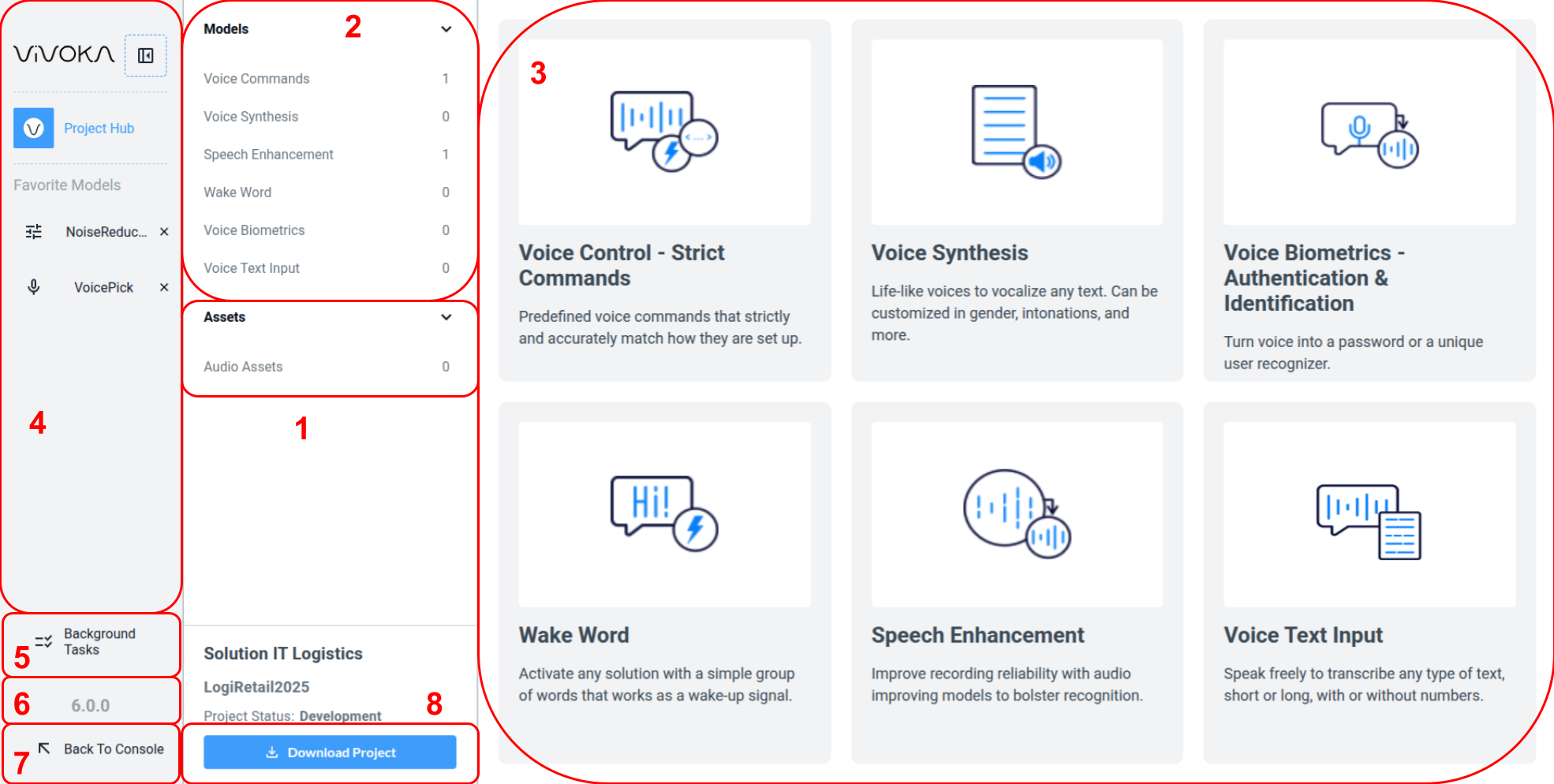
From this interface, you can access all components of your project.
-
Audio Assets (1) are the resources used by your Models (2) to train or test voice interactions within our Widgets (3). For more on managing Audio Assets, see the dedicated documentation.
-
You can navigate through the studio via the Hub (1,2,3) or directly through your Favorite Models (4) for quick access to frequently used models.
-
Several features in VDK-Studio Web take time to run, like Unit Tests or preparing your Project Download. We built a Background Task Manager (5) where you can monitor and interact with deferred Tasks from this section. See the dedicated documentation for details.
-
The VDK Version (6) indicates the underlying technology version. Switching versions may require updating code in your product, but projects are never updated automatically.
-
Use the Back To Console (7) button at the bottom of the menu to return to the Console.
-
The Download Project (8) button exports your project as a ZIP archive containing all necessary resources, including the VDK Service, configuration files, and data files for seamless voice interactions. Refer to the dedicated documentation for details.
Create Models
Click a Model type (2) or Technology Widget (3) to view the list of models for that technology. If no model exists for the selected type, create a new one.
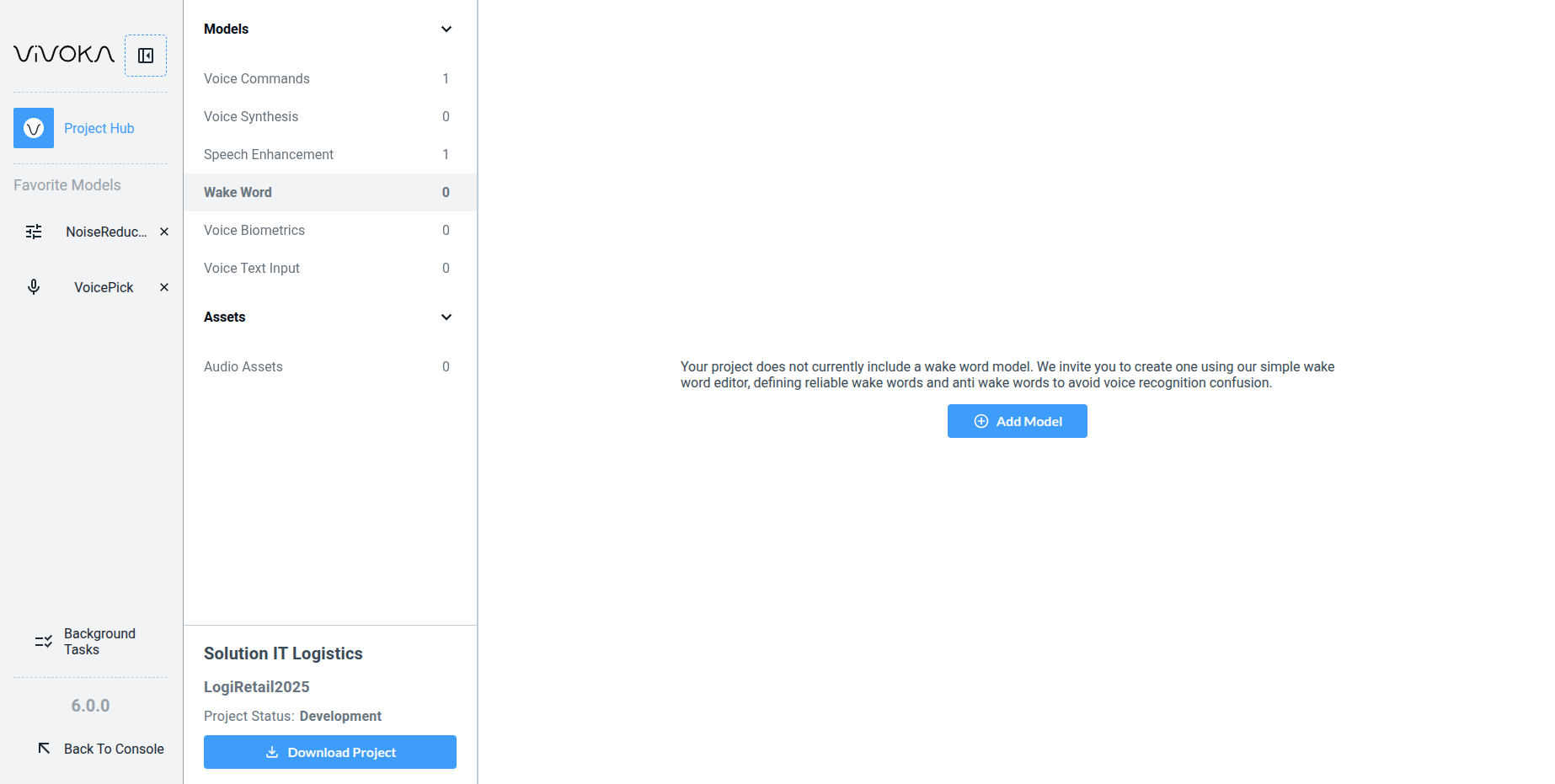
Deep dive into the Project Hub features
Find the documentation that suits your needs