

Voice Text Input technology allows free-form speech to be transcribed into text, supporting short or long utterances, with or without numbers.
Widget Navigation
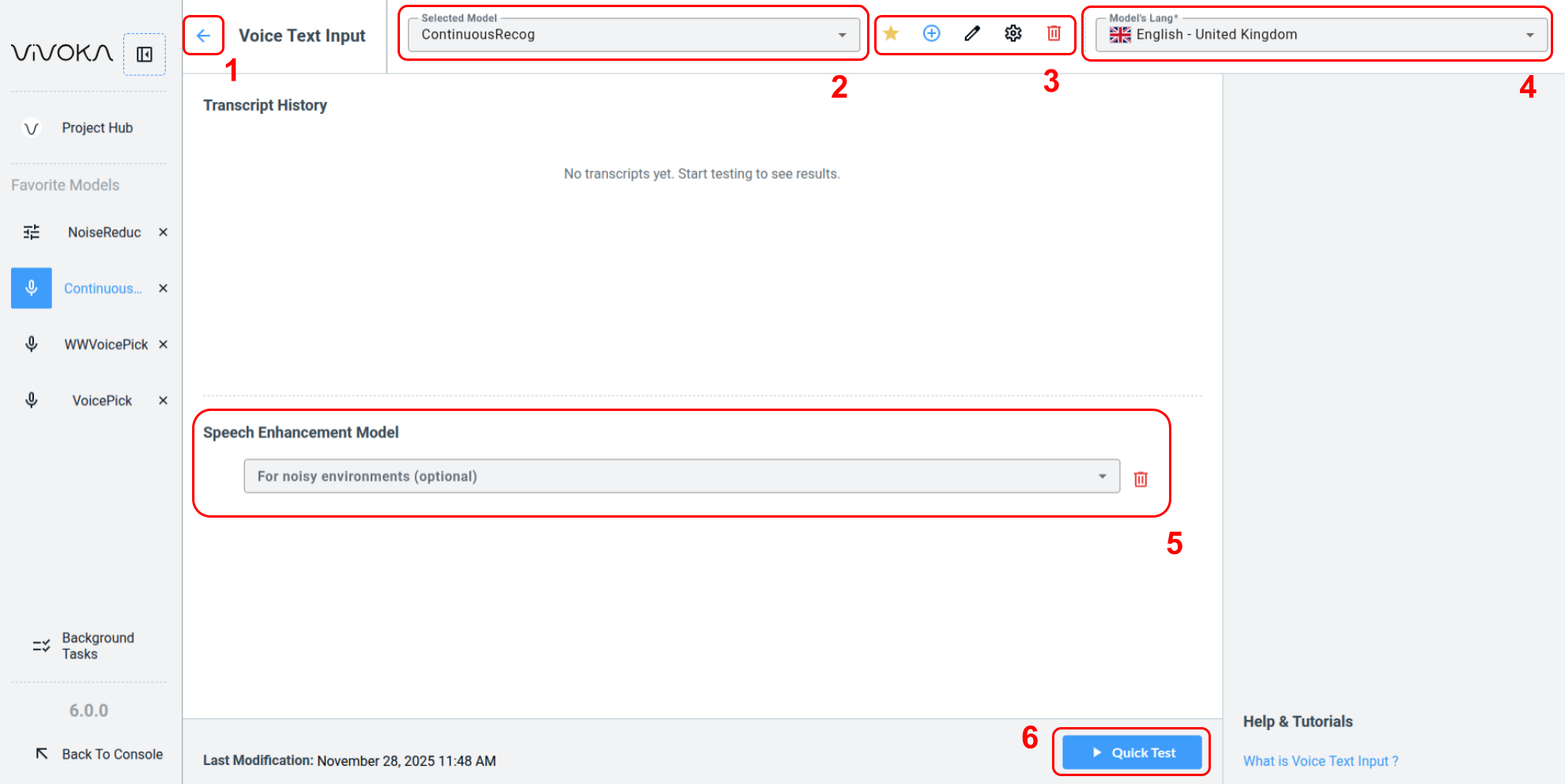
Let’s start by exploring the widget's main options.
-
Navigate back (1) to the Project Hub
-
Change the Selected Model (2) you are editing
-
Widget global editing tools (3):
-
Add this model to Favorites
-
Create a new model
-
Rename the model
-
Configure the recognizer
-
Delete the model
-
-
Change the Model’s Language (4)
-
Choose an optional Speech Enhancement model (5) to improve voice detection in noisy environments
-
Quick Test (6) your model in real time by speaking directly in the widget
How to configure the recognizer ?
How to configure the recognizer ?
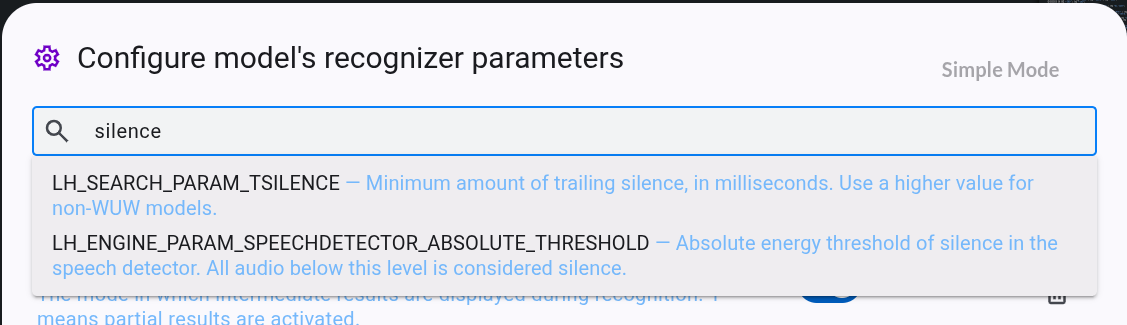
Click the wheel icon to open the Voice Recognition model parameters modal.
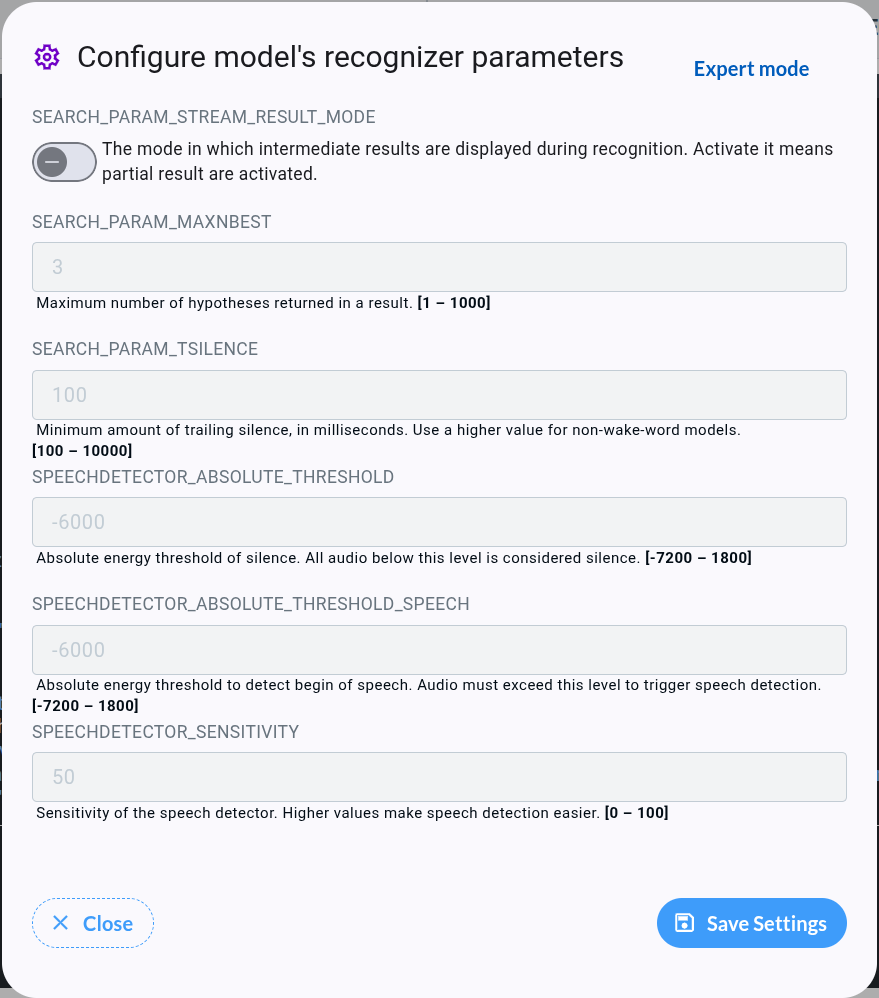
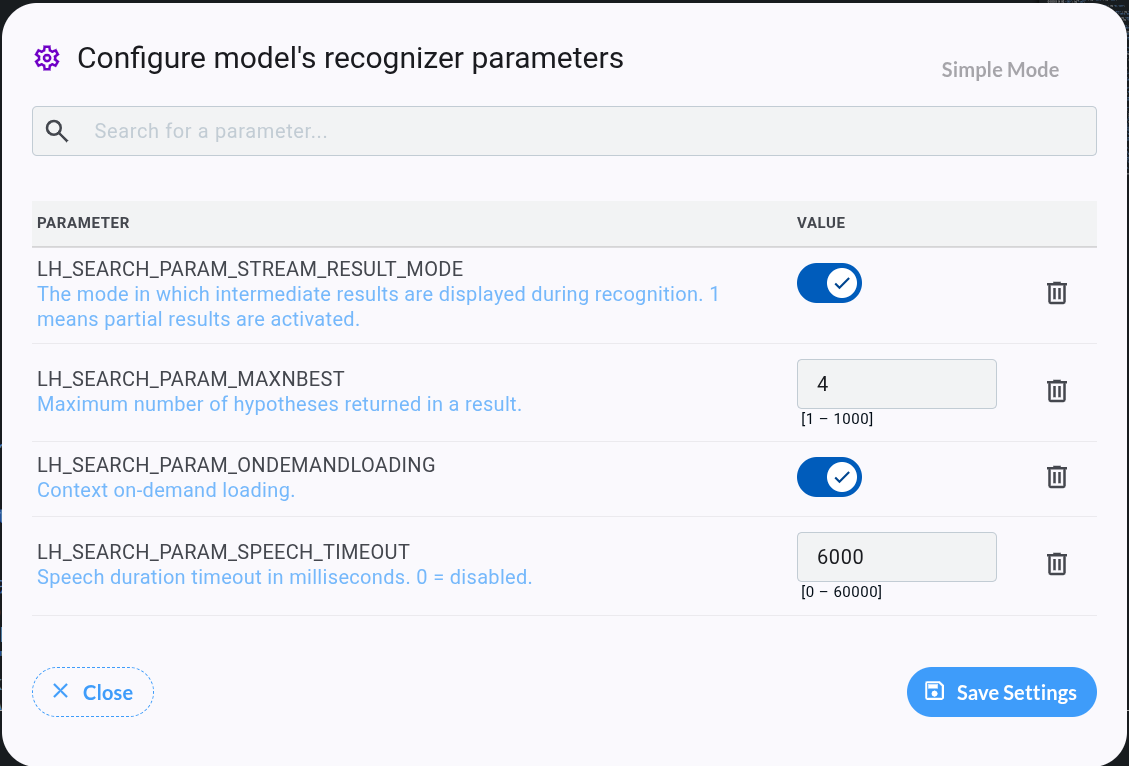
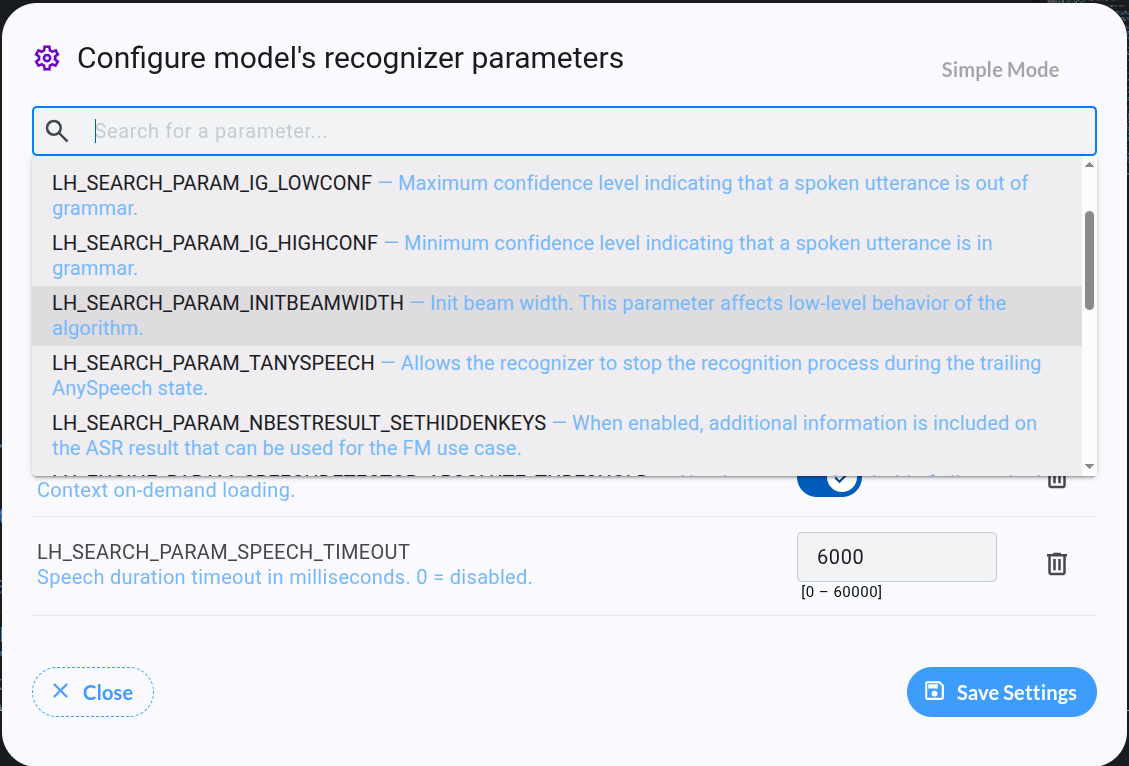
Starting from VDK Studio version 6.3, use the Expert Mode button atop the modal to edit all model parameters. Simple mode provides direct access to frequently used parameters, with descriptions and min-max ranges in bold. Default values are written as placeholders.
Testing the Voice Text Input Model
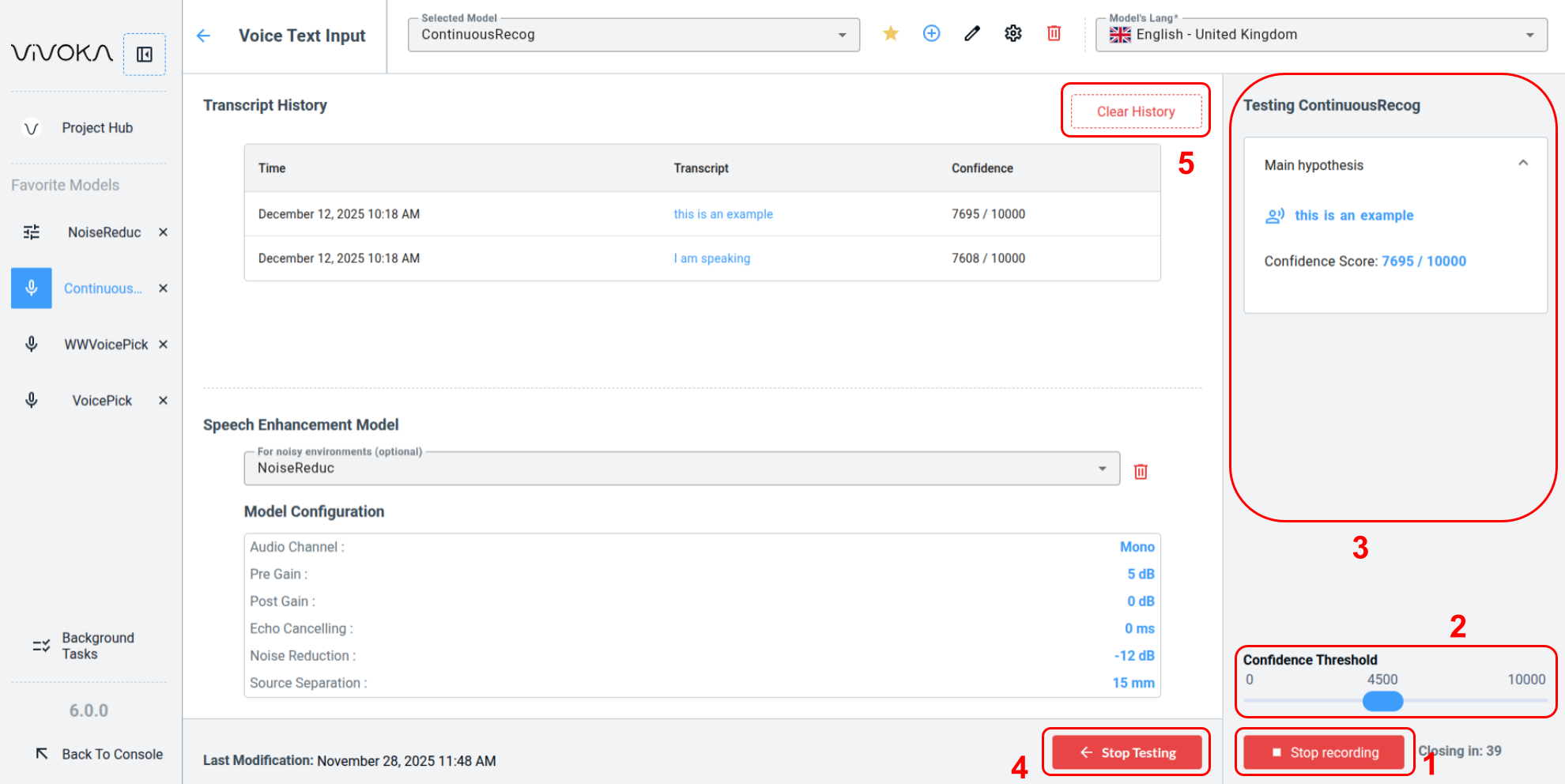
When the test panel is open and ready, click Start recording (1) to play the model for one minute. Adjust the confidence threshold (2) in real time during the test to display only hypotheses that meet the minimum confidence score. Speak your voice commands aloud to see the hypotheses appear (3) according to your model's recognizer parameters.