

Grammar-based recognition is a technology that enables reliable voice commands. Prepare and configure your voice commands in this widget before integrating them into your product.
Widget Navigation
Let’s begin by exploring the main options available in this widget.
-
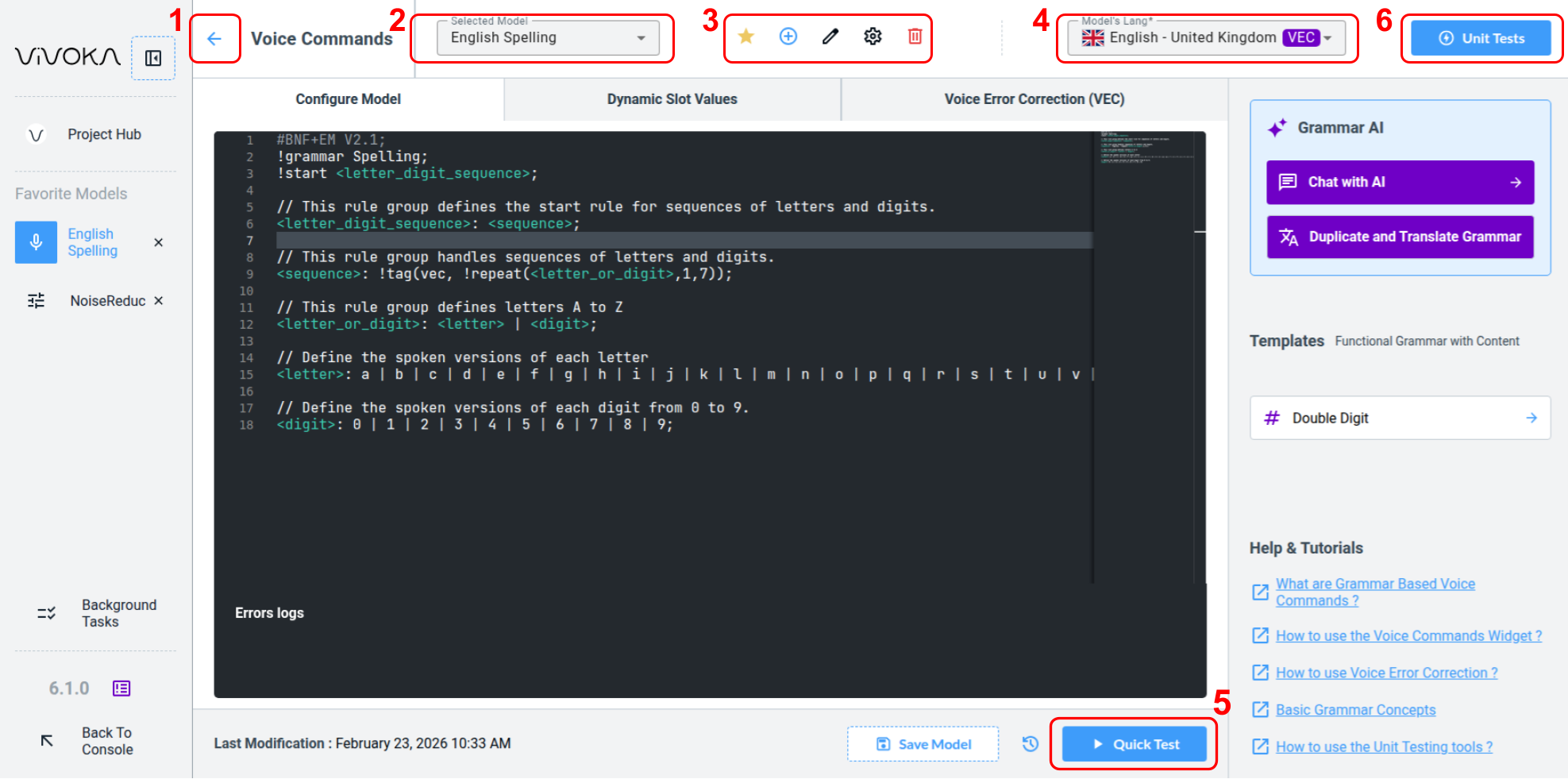
Navigate back (1) to the Project Hub
-
Change the Selected Model (2) you are editing
-
The widget global editing tools (3):
-
Add this model to Favorites
-
Create a new model
-
Rename the model
-
Configure the recognizer
-
Delete the model
-
-
Change the Model’s Language (4)
-
Quick Test (5) your model in real time within the widget by speaking
-
Go to the Voice Commands Unit Testing (6) page to verify your model meets production needs with a dedicated process. See this documentation about Unit Testing to learn more.
How to configure the recognizer ?
How to configure the recognizer ?
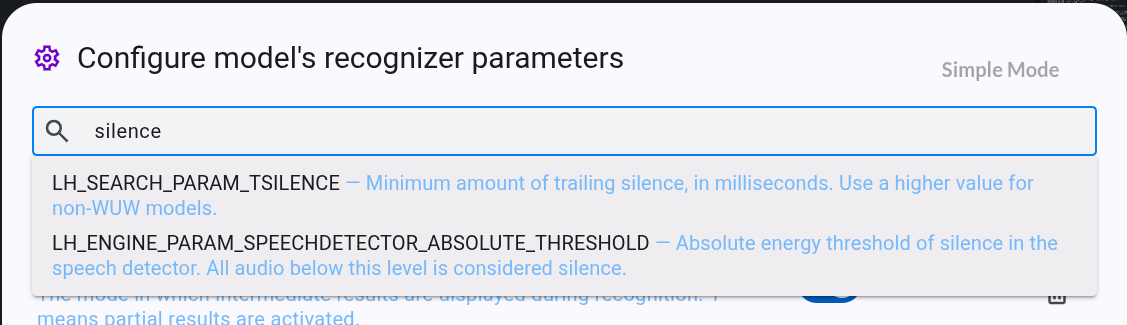
Click the wheel icon to open the Voice Recognition model parameters modal.
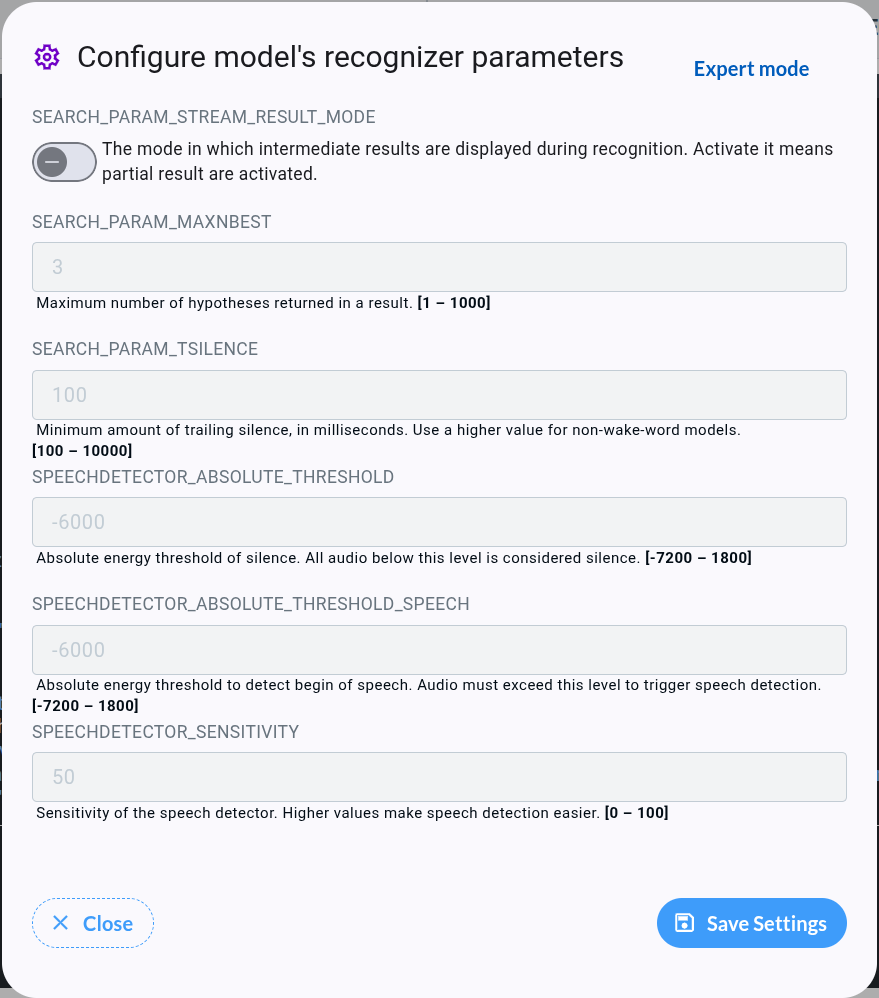
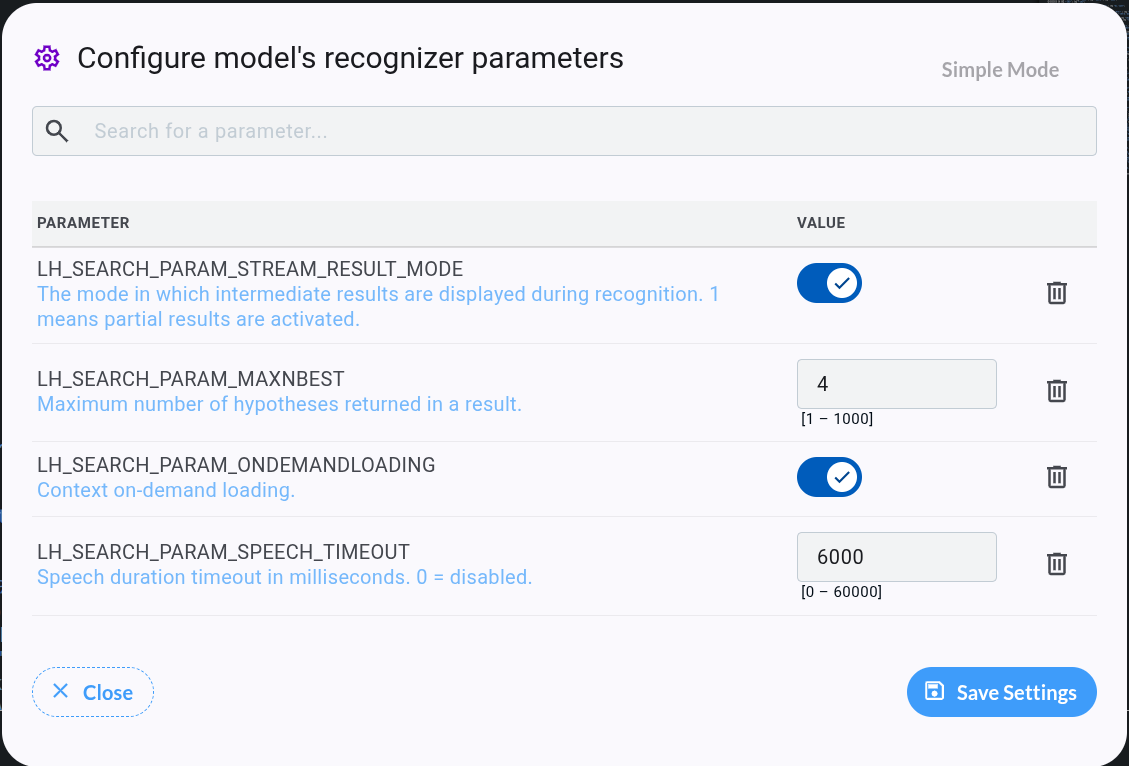
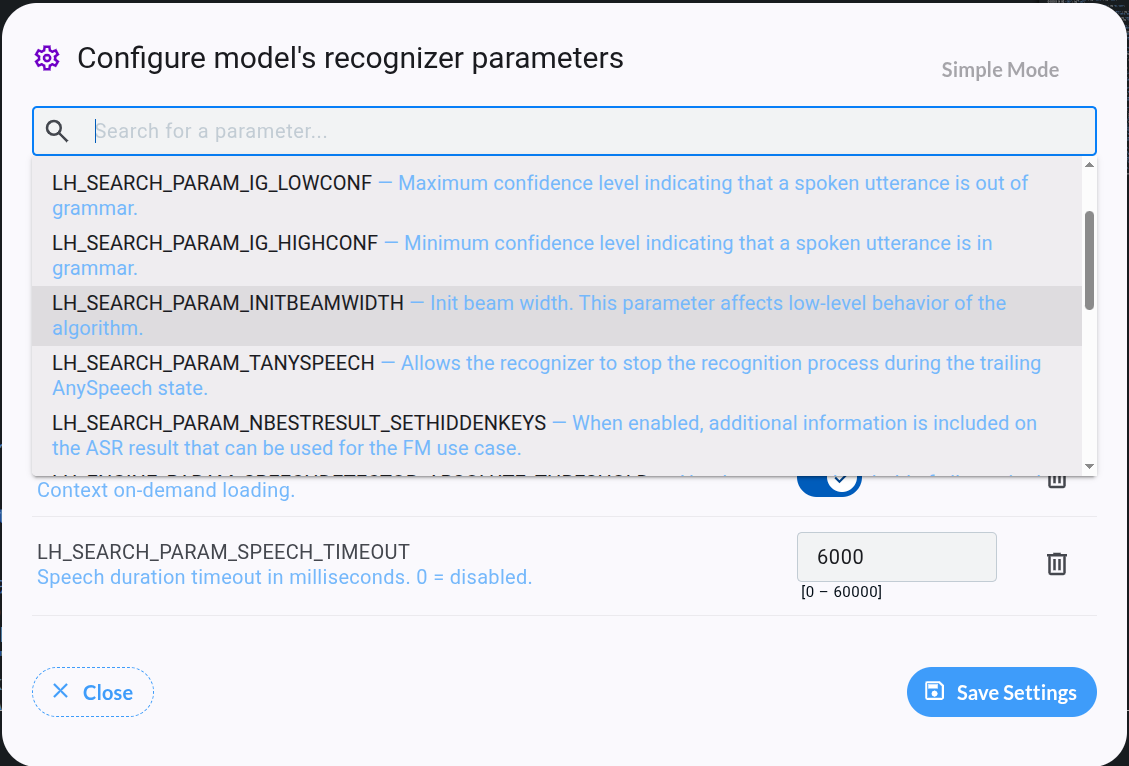
Starting from VDK Studio version 6.3, use the Expert Mode button atop the modal to edit all model parameters. Simple mode provides direct access to frequently used parameters, with descriptions and min-max ranges in bold. Default values are written as placeholders.
Grammar Editor
Our Grammar Editor allows you tp edit voice command files formatted in BNF.
Grammar Edition Tools
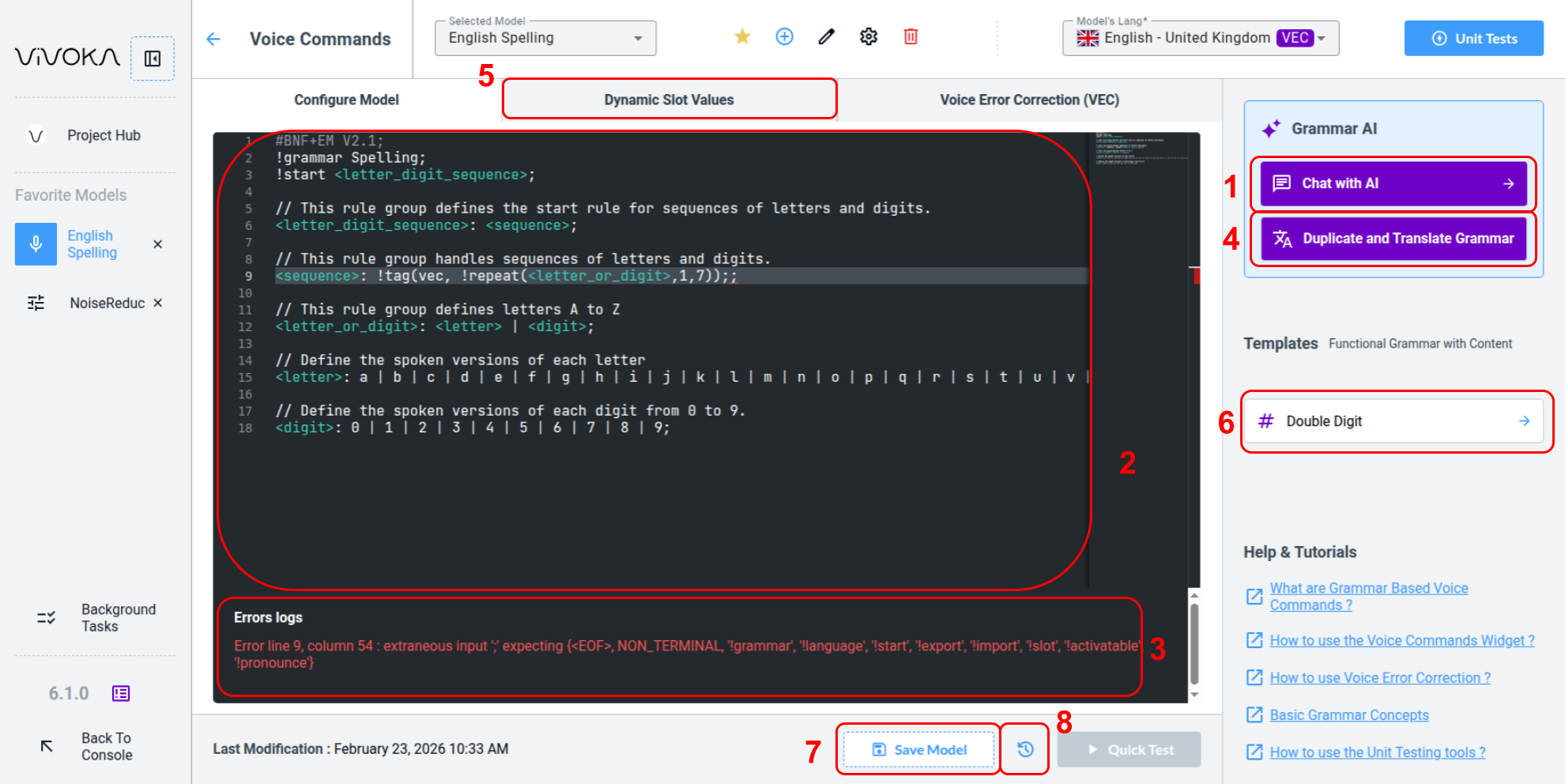
We invite you to try our recent Chat With AI (1) tool, which open a chat dialog to edit your grammar based on a prompt.
How to use the Chat With AI tool ?
How to use the Chat With AI tool ?
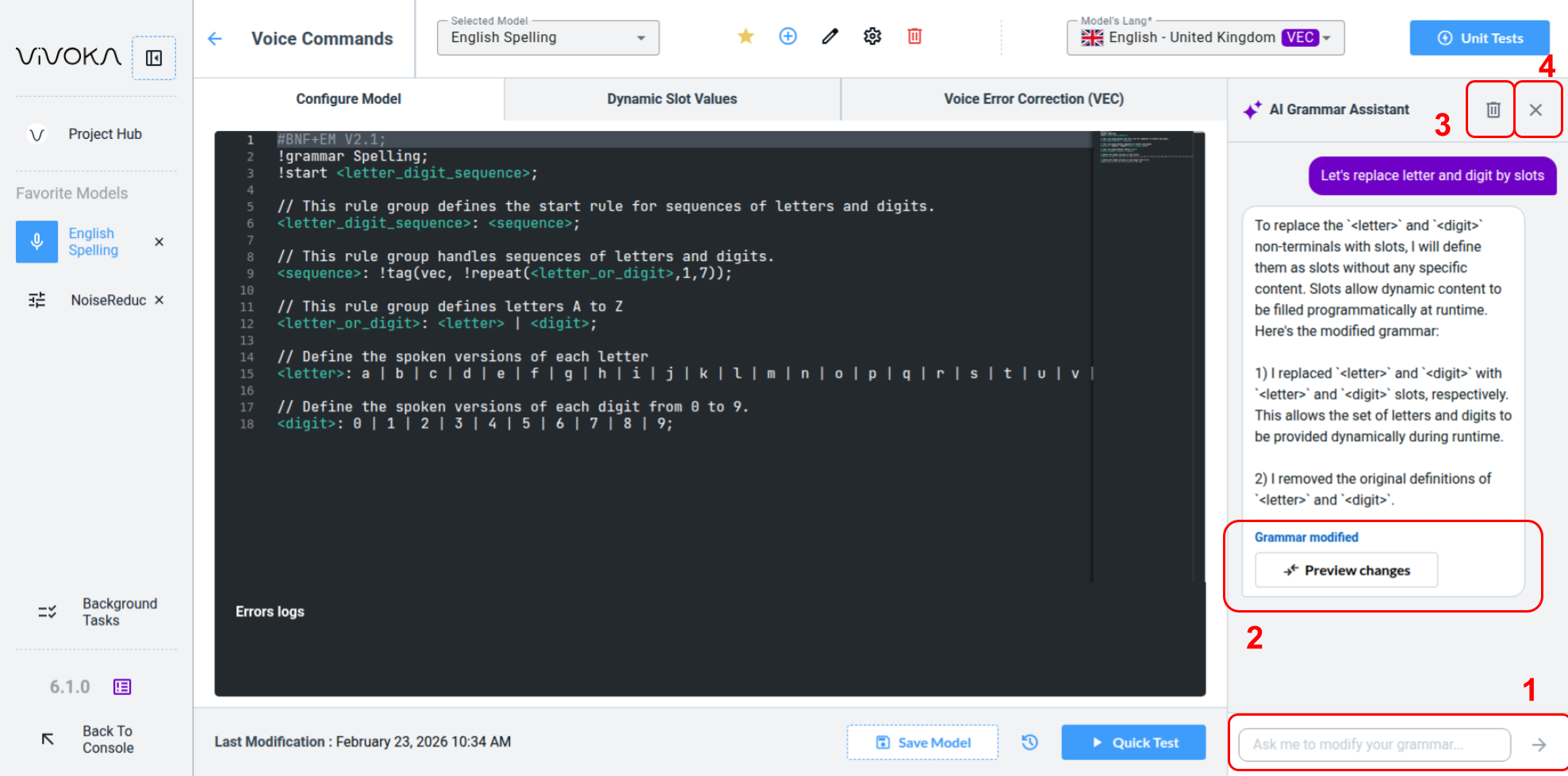
Write your desired prompt in the dedicated textarea (1) and wait our smart prompts to achieve as close as possible your grammar needs. The AI will have access to errors logs and will be able to help you understand and propose some fixes. When some changes are pushed by the AI, there is a Preview changes button (2) that appears. You also can clear the chat logs (3) or close the AI Chat panel (4).
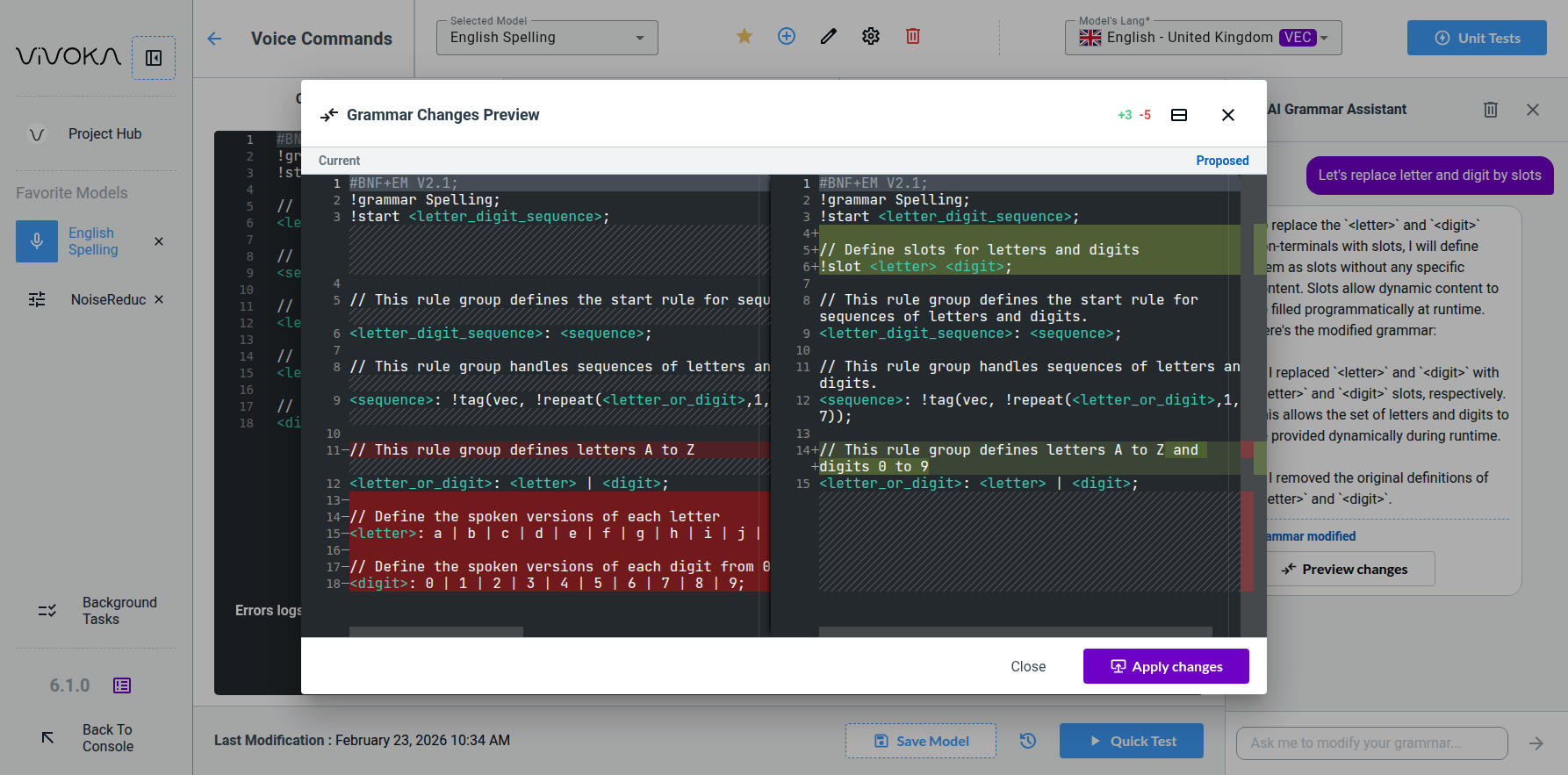
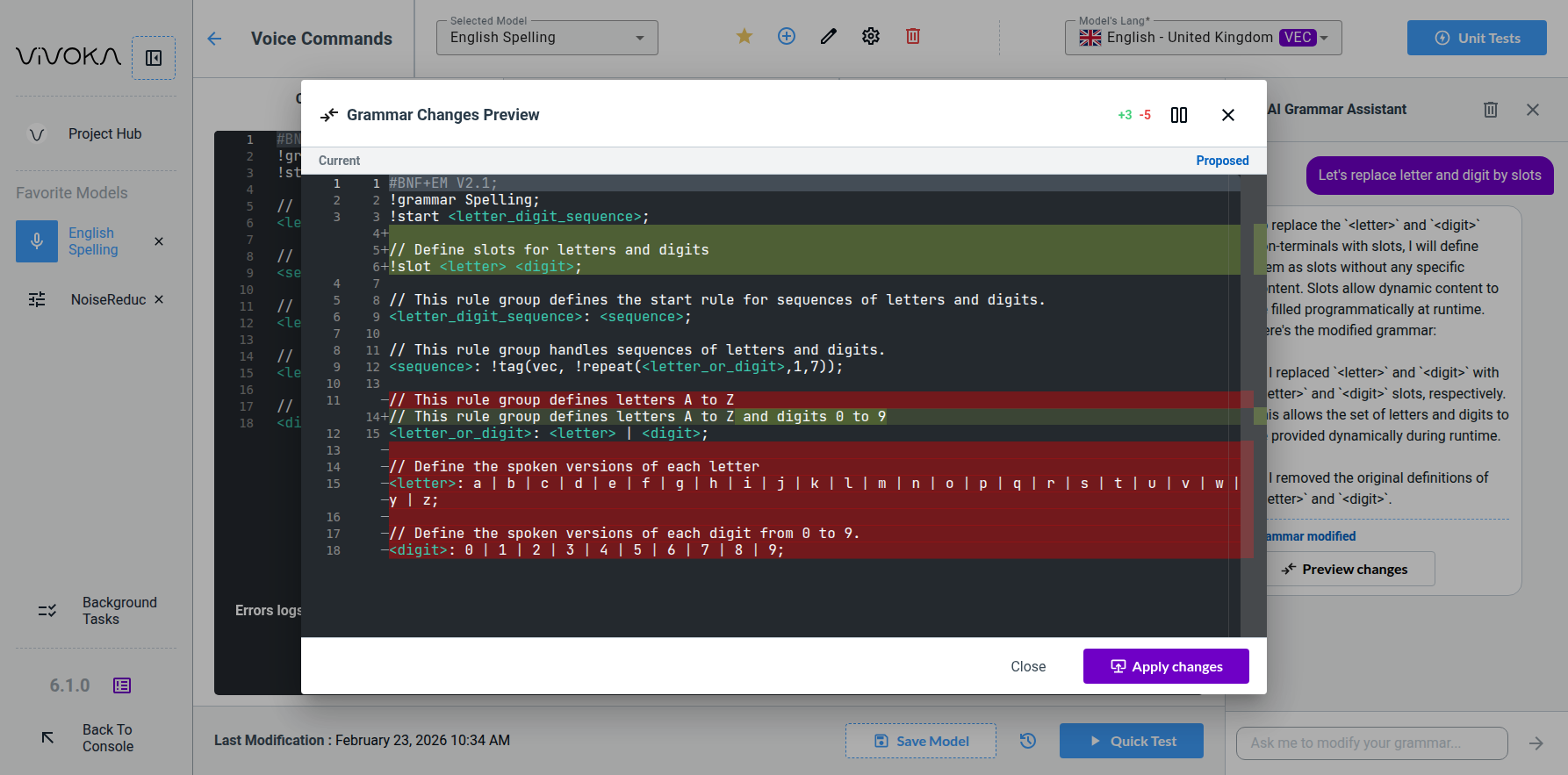
After reviewing changes, you can Apply changes and they will be applied and the grammar will be saved.
Your Grammar Editor (2) is based on Monaco Editor, which is built on VS Code. Right-Click to access standard VS Code functions, and all familiar shortcuts work. Use ALT+Click for multiple cursors. Save your work with CTRL+S or with the dedicated Save Model (7) button. Note: you cannot Quick Test your model until it is saved. Click on the history icon button (8) to see previous versions of your grammar.
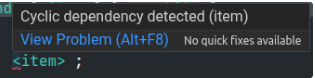
Our comprehensive error parser and lexer (3) assist you while editing. Errors include line and column information with detailed messages. Text containing errors is underlined in red, and hovering over it shows a tooltip with full details.
To reach production, you’ll likely need to translate your grammar—a challenging step, but we can help. Our Translation AI Tool (4) allows you to quickly translate voice commands while preserving all rules and comments. Your unit testing processes will ensure that your grammar behaves correctly in every language.
How to use the Translation AI tool ?
How to use the Translation AI tool ?
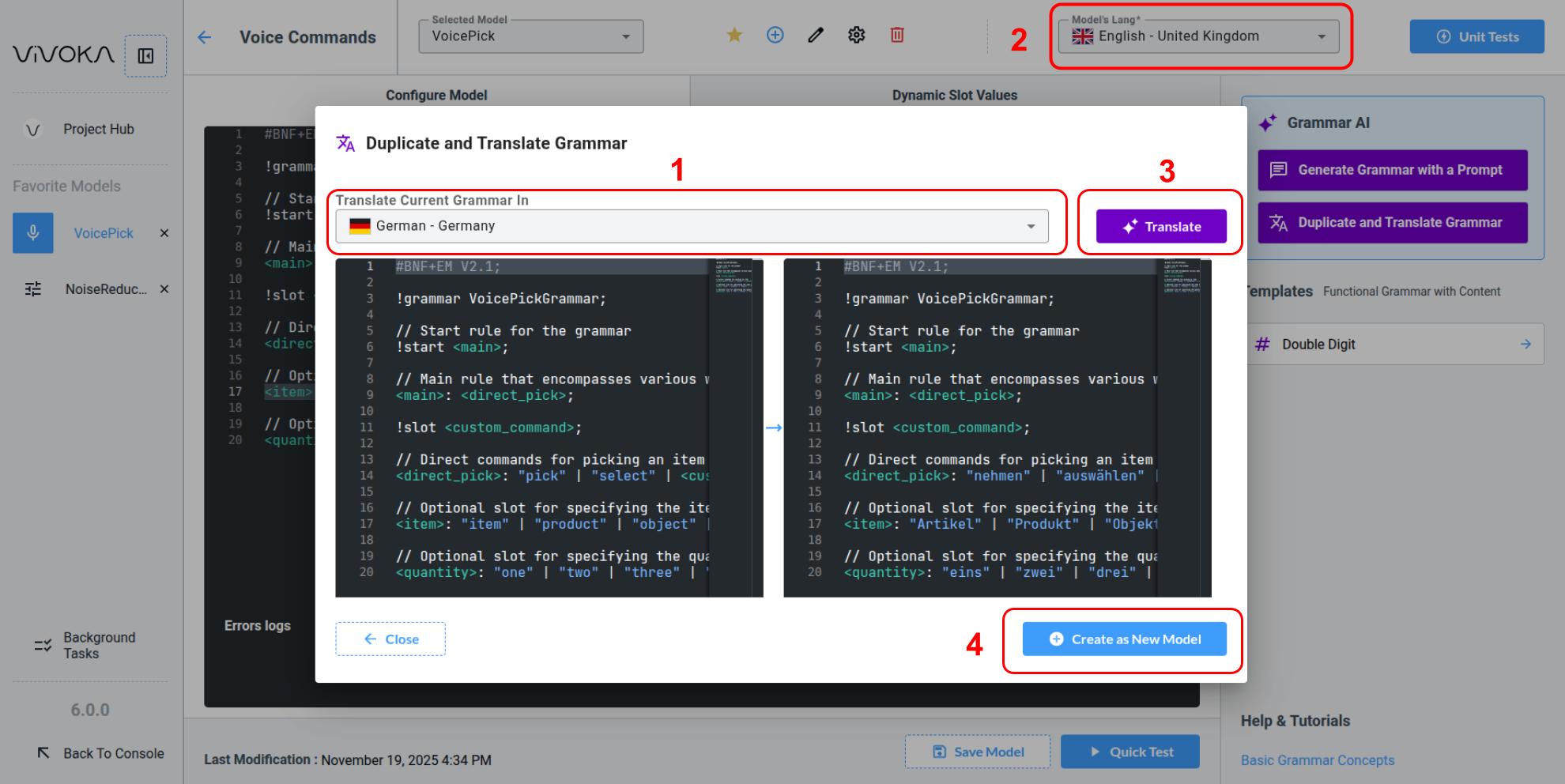
Choose the Target Language (1), knowing that the source language is inherited from the Model’s Lang (2). Click Translate (3) to generate ready-to-use grammar in under 5 seconds. There are no limits, aside from decency, on using our AI tools under your project licensing. Finish by selecting Create as New Model (4).
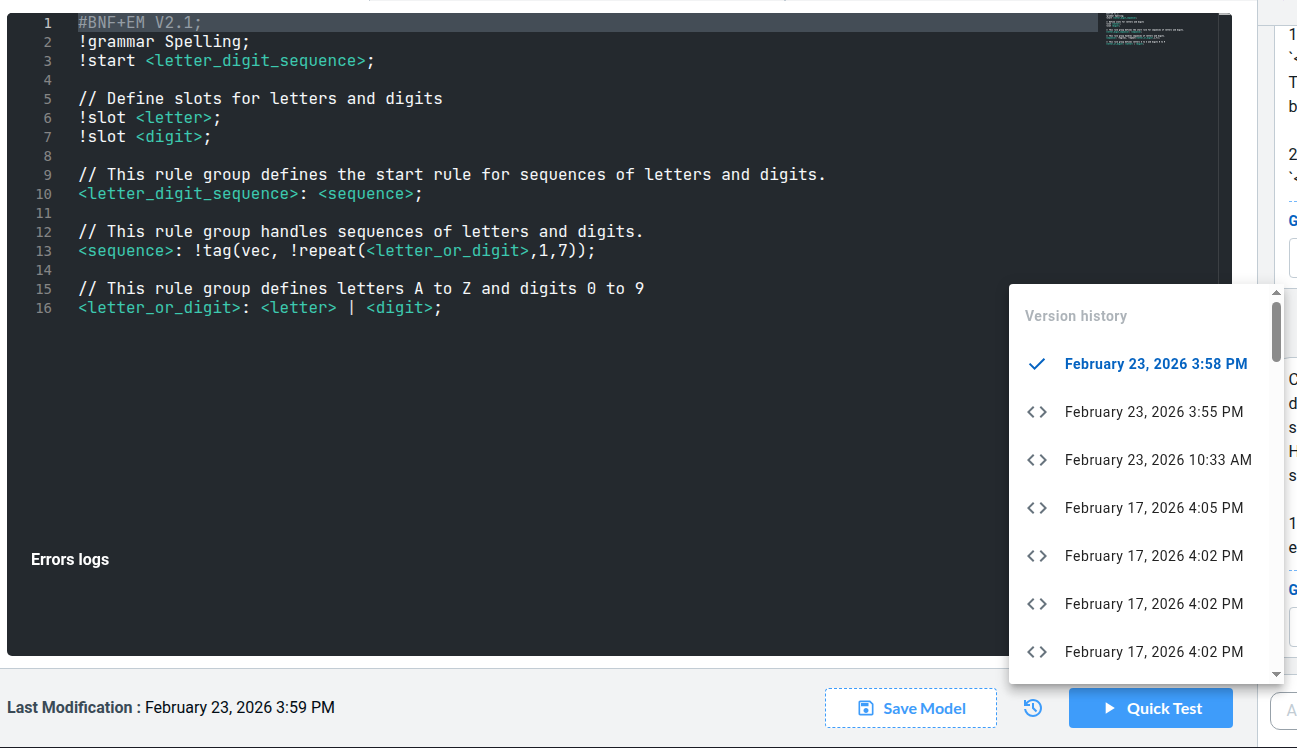
Each time your grammar is saved, a version of it is created in the Version history list. Consult it and apply back a previous version.
Advanced Grammar Edition
a. Grammar Slots
Voice Commands Grammars offers the possibility to inject dynamic values at runtime using slots. Please refer to our documentation to learn about slots.
For each slot in your grammar you will need to provide a value in the dedicated tab Dynamic Slot Values (5).
How to add a slot ?
Slots are added directly in the grammar editor using the !slot rule. For example:
[...]
!slot <cities>;
<main>: "yes" | "no" | <cities>;
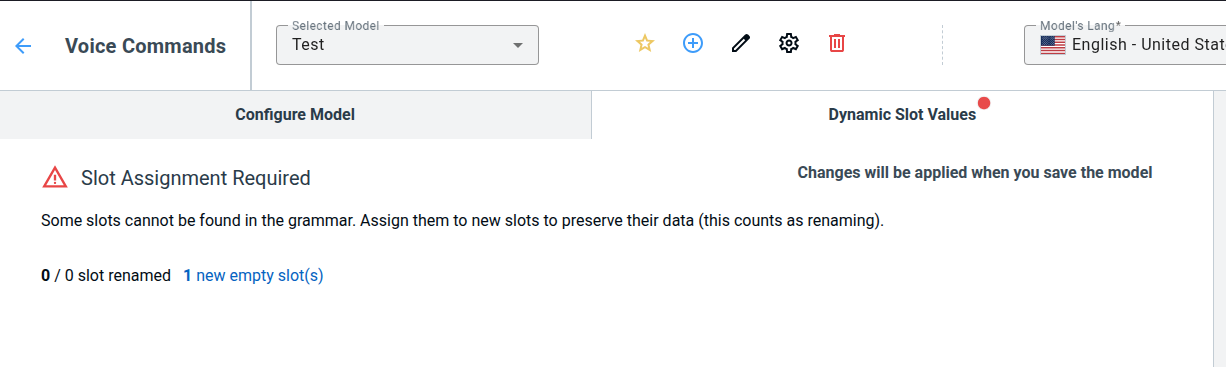
By doing so, the Dynamic Slot Values tab will show a red pastille showing a slot is detected.
Define Slot Values manually
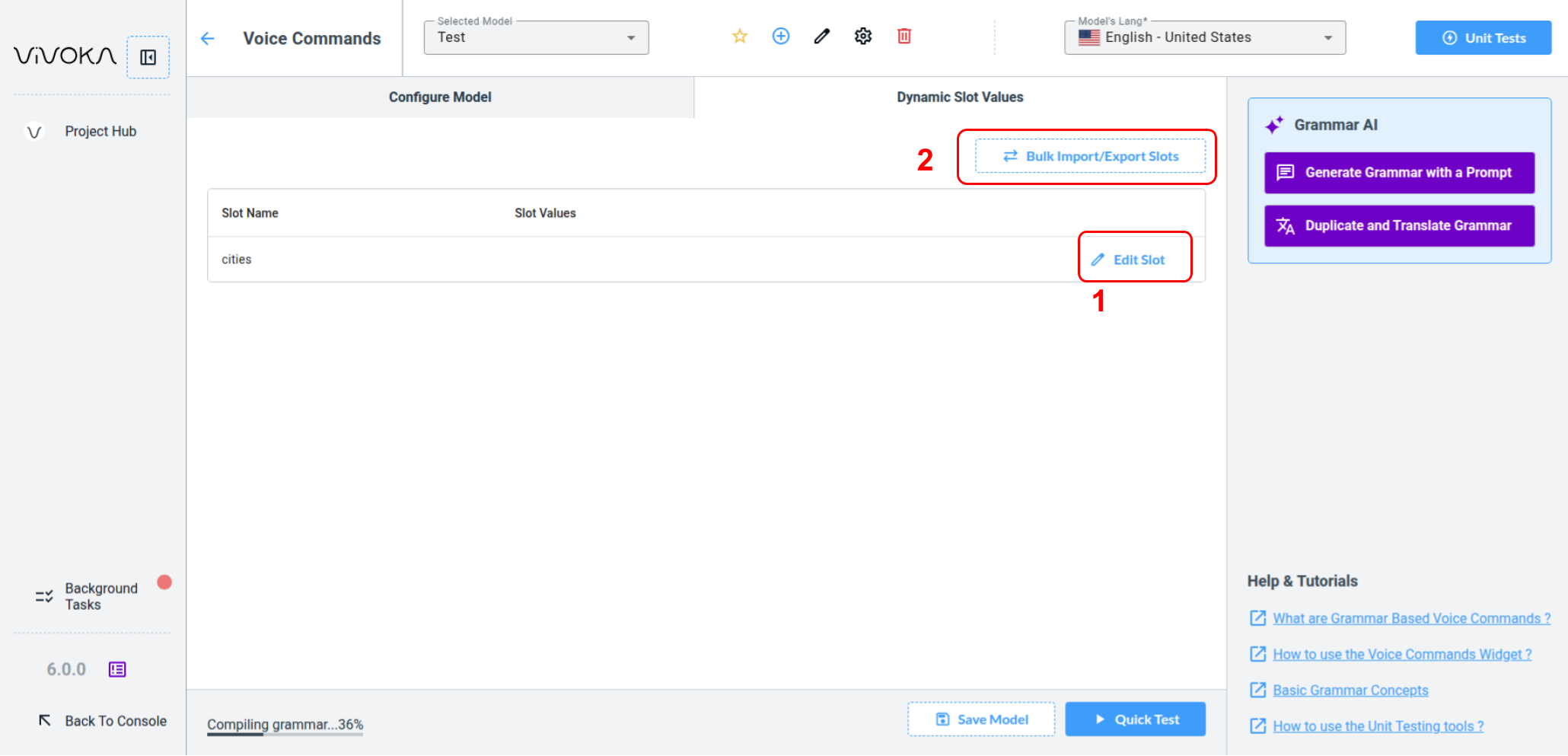
After saving the model, the slot is created and you can edit it using the Edit Slot button (1). It is also possible to edit slot values using a .csv file via the Bulk Import / Export Slots button (2).
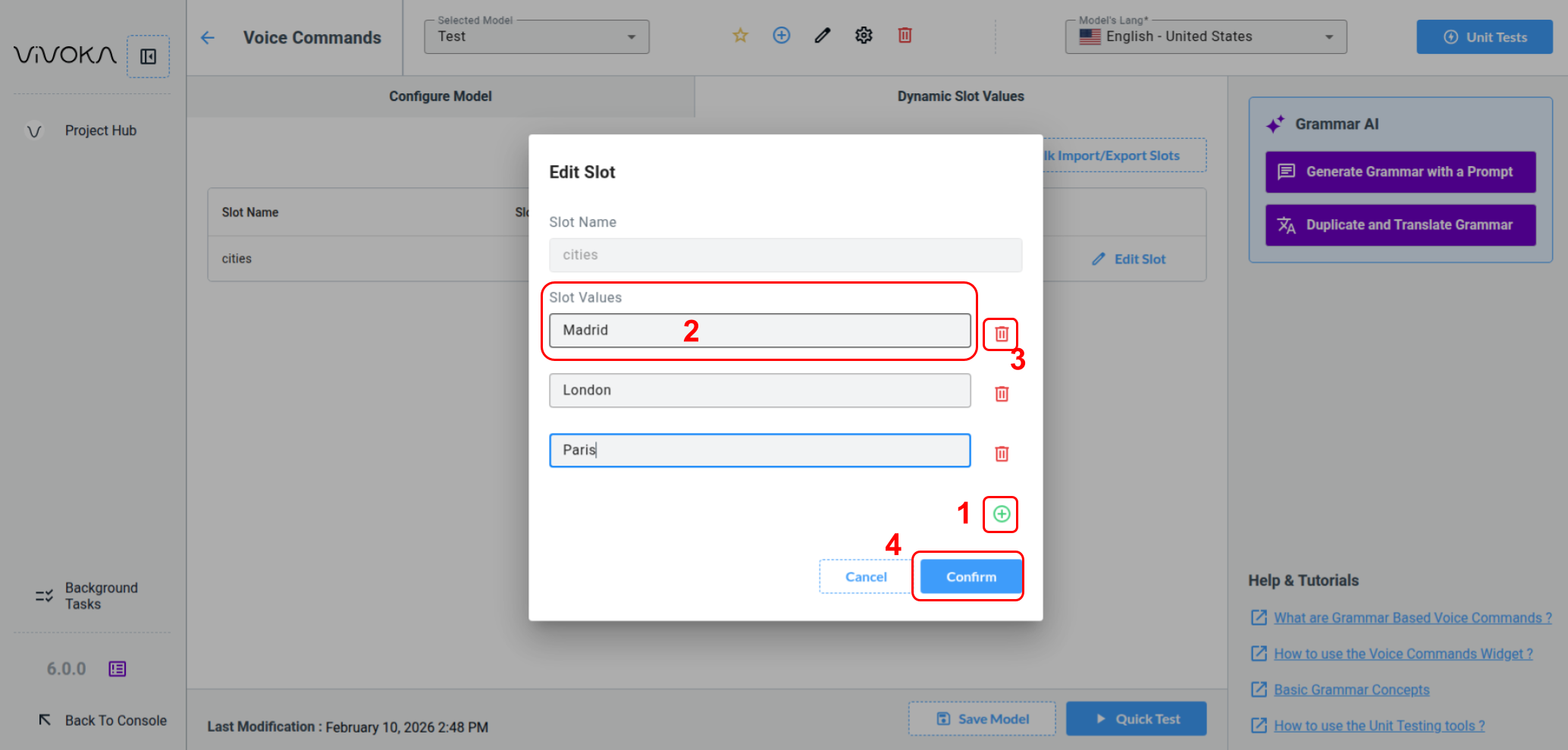
Press the plus icon button (1) to add an editable Slot Value. Edit this value using the dedicated fields (2). Press the delete icon button (3) to remove the unecessary values and finally press Confirm button (4) to save.
Define Slot Values from CSV file
If you pressed the Bulk Update Slots button in the Dynamic Slot Value tab, you should see this modal appear.
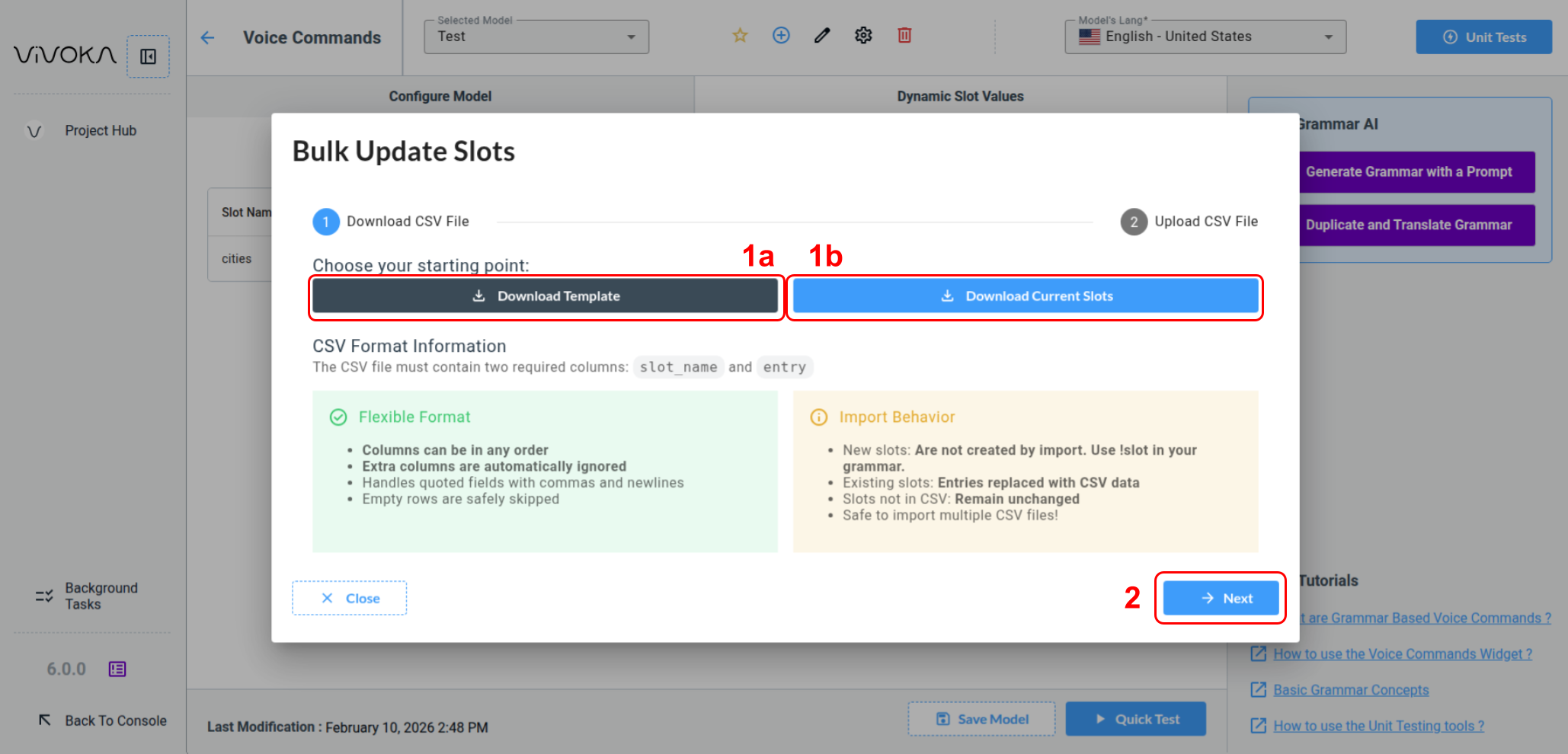
You can press the Download template button (1a) to obtain the .csv file template or directly download the actual slots in the Unit Test you are editing using the Download Current Slots button (1b).
CSV Structure
The CSV file must contain two required columns (in any order):
-
slot_name: Name of the slot -
entry: One value added to the slot
Example CSV (assets.csv):
slot_name,entry
city,Paris
city,London
city,New York
color,red
color,blue
color,green
Import Behavior
When you import this CSV (or a modified version):
-
CSV is parsed with flexible column ordering
-
New slots are ignored if not existing (because you must create them using the grammar !slot rule)
-
Existing slot values are removed to save the .csv file values
-
Existing slots are untouched if not present in the .csv file
-
Invalid rows are ignored
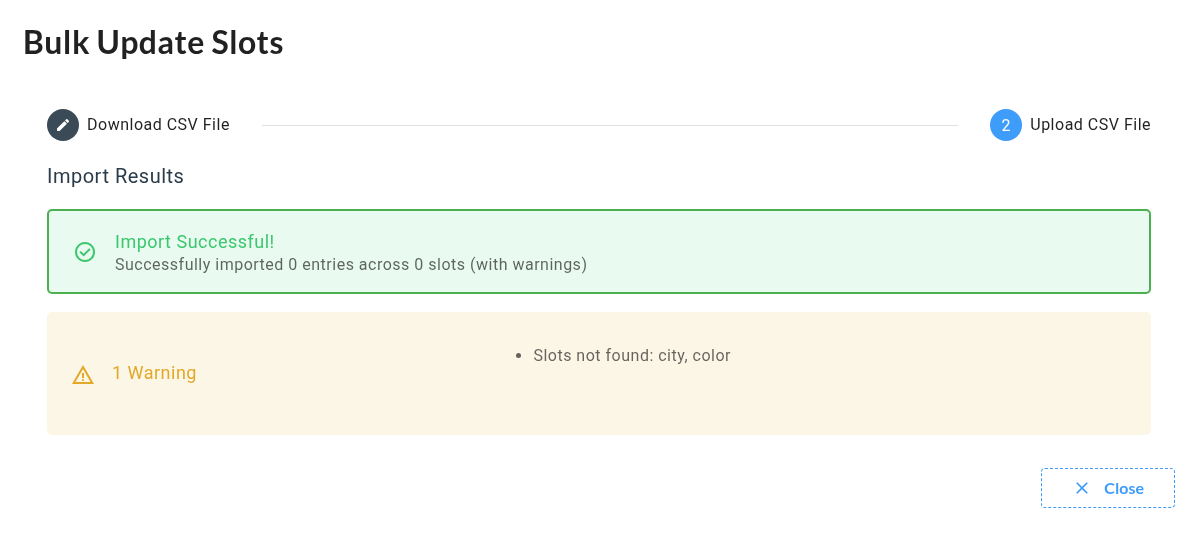
The names are stricly compared during import.
city != cities
color is missing
Rename a slot
The slots must be defined in the grammar of the model. So in order to rename a slot, you have to edit it directly in the editor. For example:
[...]
!slot <city>;
!slot <color>;
<main>: "yes" | "no" | <city> | <color>;
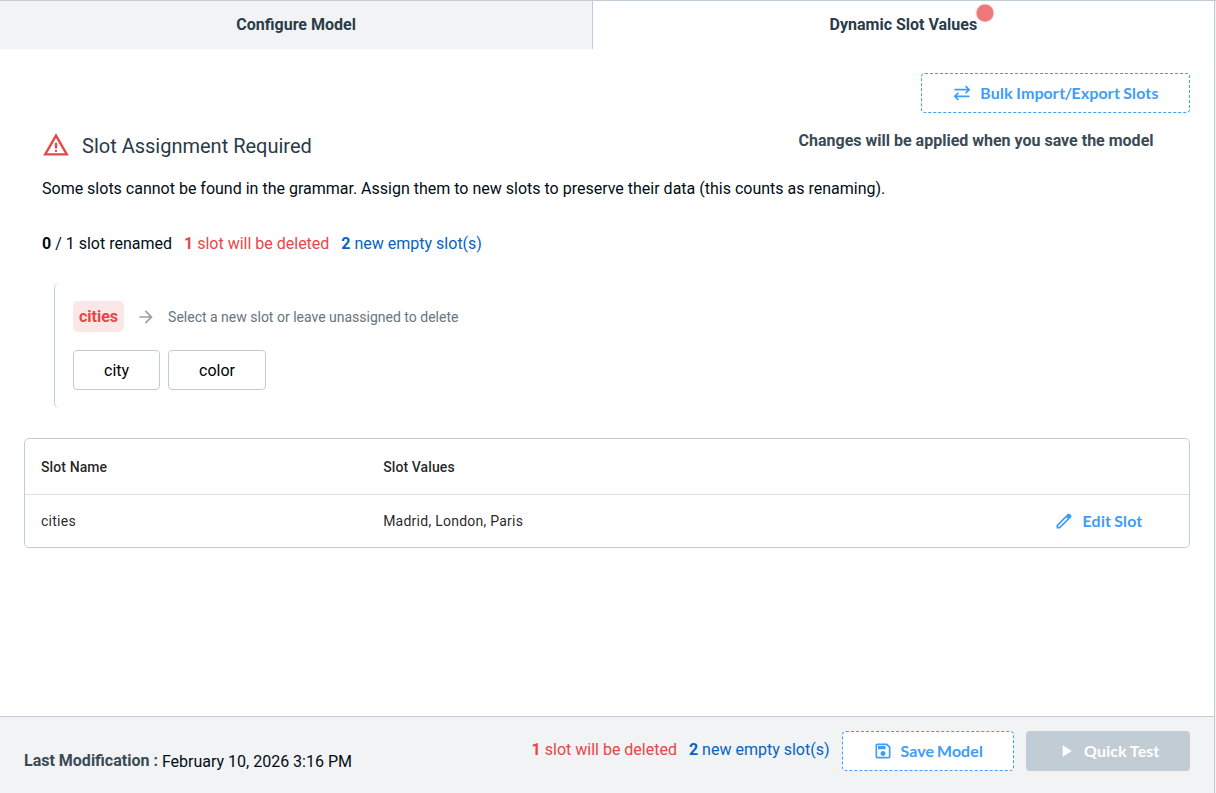
The grammar parser detects we changed the slot, but doesn’t know we are renaming it.
Cities slot values will be lost if we save now.
We can transfer the values of the slot <cities> by clicking the <city> slot in the choices.
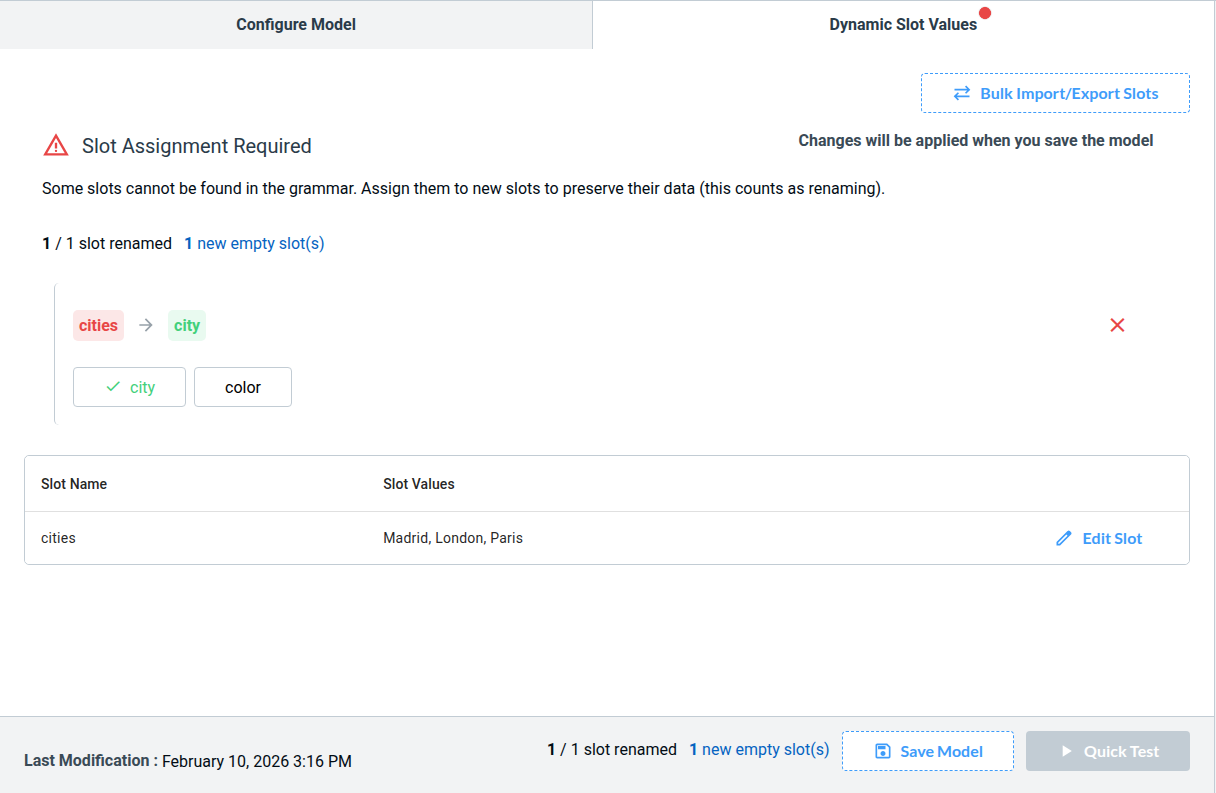
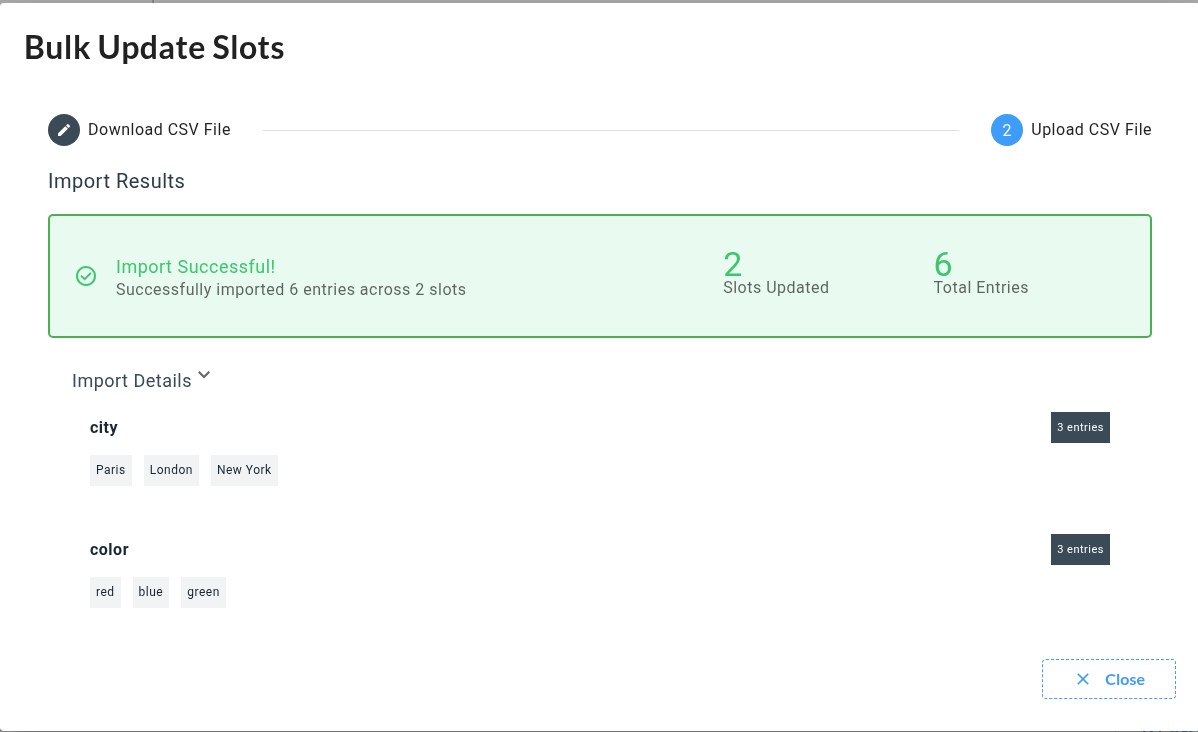
Previous Slot values are erased by the process, because VDK Studio consider you exported Slot values before editing them and importing them back.
In the example New York was in the file, not Madrid.
To make a slot functional you need :
-
A slot defined in your grammar
-
The same slot referenced somewhere within the same grammar
-
Predefined values filled in the dedicated table
b. Grammar Phonem Templating
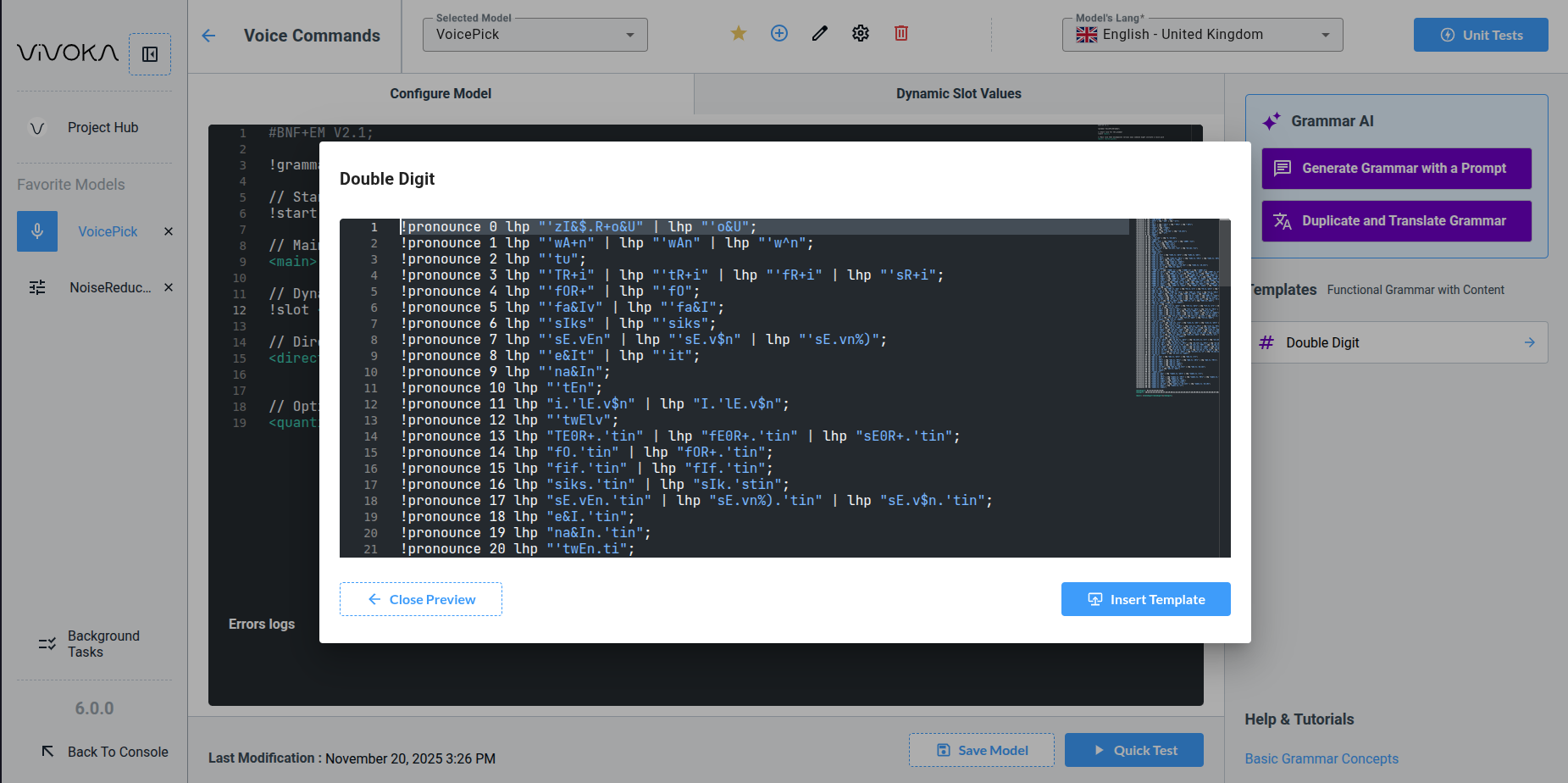
We provide a growing list of phoneme templates to improve recognition of your commands. If your grammar is one of the supported languages, the Templates (6) button will appear:
-
Dutch (Netherlands)
-
English (United Kingdom)
-
French (France)
-
German (Germany)
-
English (India)
-
Italian (Italy)
-
Portuguese (Brazil)
-
Spanish (Spain)
-
Spanish (Mexico)
Clicking the button opens the template in a dedicated modal. Adding the template does not replace your existing grammar. It appends the template at the end.
Testing the Voice Commands Model
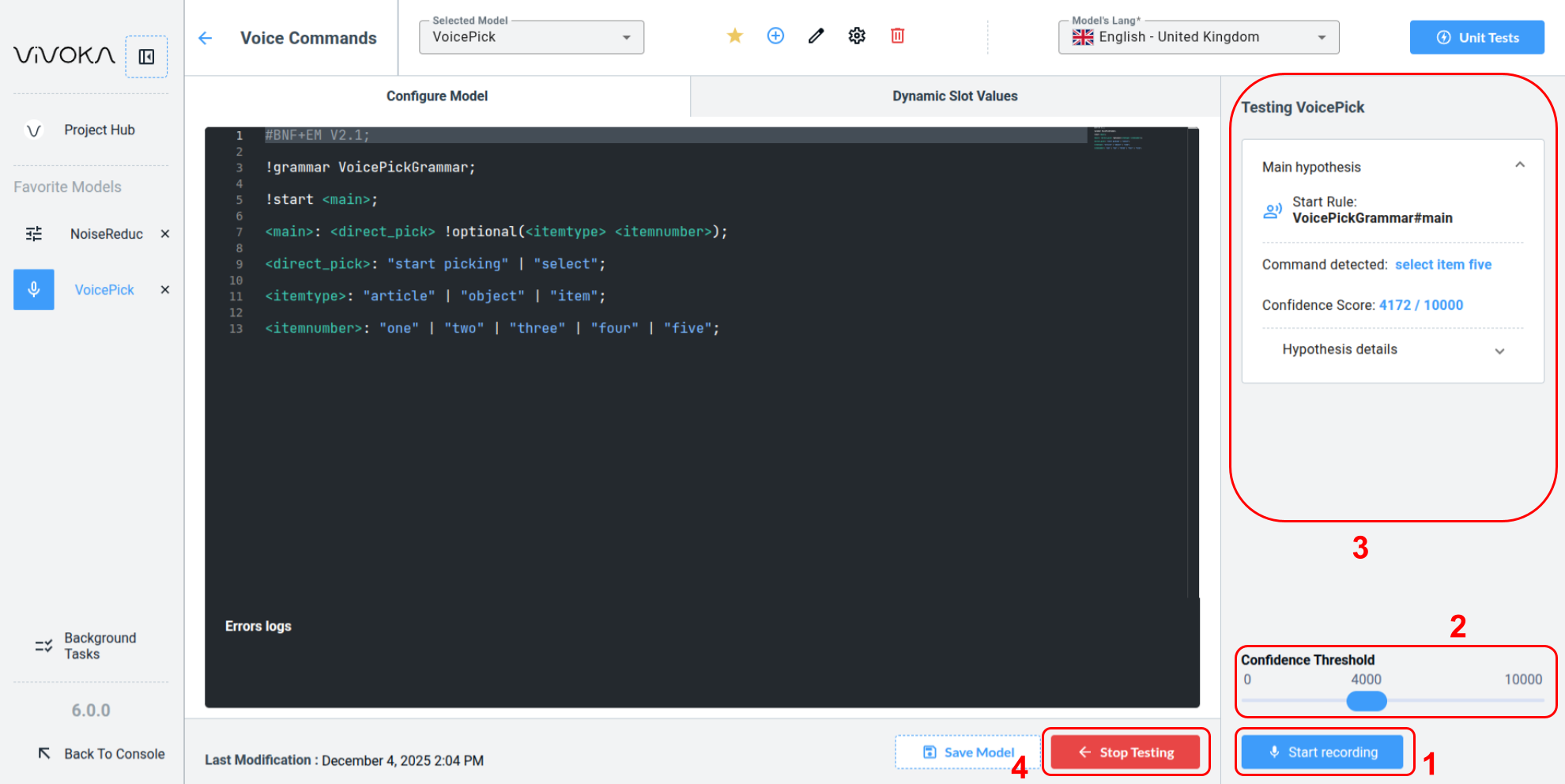
When the test panel is open and ready, click Start recording (1) to play the model for one minute. Adjust the confidence threshold (2) in real time to filter hypotheses below the minimum score. Speak the voice commands aloud and watch the hypotheses appear (3), based on your model's recognizer parameters.
How to read hypothesis ?
How to read hypothesis ?
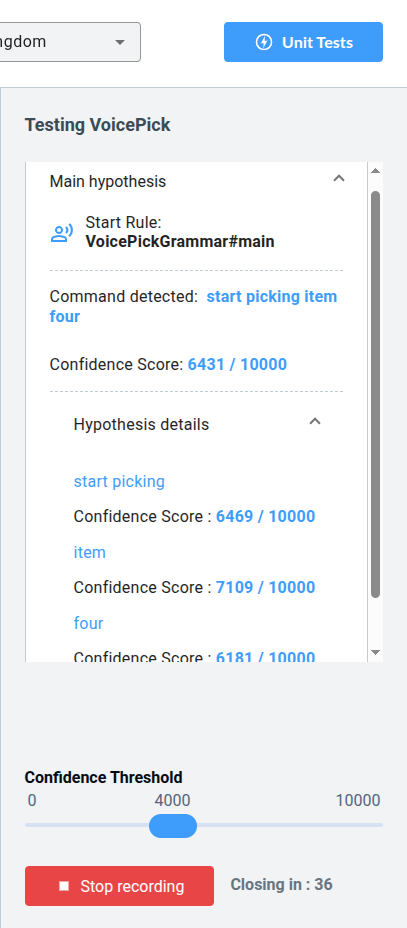
The key information is the Start rule. Most grammars have a single main rule, though multiple starting rules can be useful in certain cases.
-
A confidence score of over 6000 (above the 4000 threshold) allows the hypothesis to be displayed.
-
Alternative hypotheses contain the same information as the main hypothesis.
The hypothesis details show the confidence score for each entity within your voice commands, inside the whole utterance. It allows you to understand which part of the voice command is less understood by the technology.
What are recognizer options ?
What are recognizer options ?
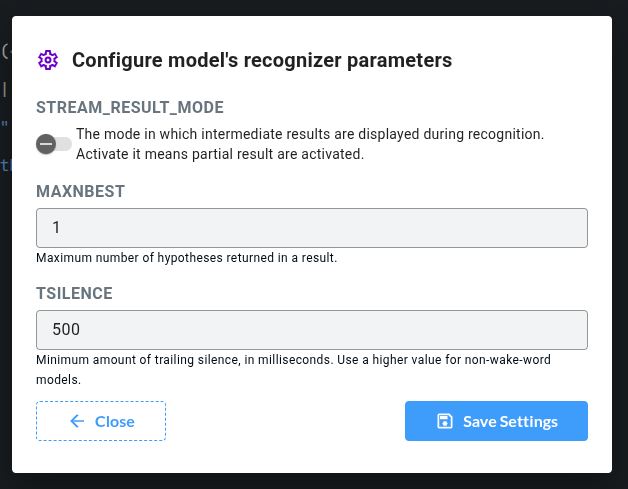
Based on this documentation page containing Recognizer parameters, we provide the most used parameters that have a real impact in Quick Testing. Remember you can still change those parameters after Downloading the project.
TSILENCE: The silence period required to detect the Voice Command has elapsed. Any voice recognized afterward will be treated as a new Voice Command.
STREAM_RESULT_MODE: This means results will appear while you speak. Even if you do not pass the TSILENCE, "partial" results will still appear.
MAXNBEST: This value represents the maximum number of hypotheses considered and displayed in the test.