To get the files representing your project’s voice interactions, download your project using our Download Project feature (or Export Project). This straightforward task takes just a few steps. But first, you might wonder what a project looks like after export?
What does a project look like when exported?
What does a project look like when exported?
In this example, the Windows download process provides a ZIP file named:
export_windows_x86_64_2025_11_28_10_11_50.zip
After extraction, it contains a folder representing the project at the time of export:
export_windows_x86_64_2025_11_28_10_11_50$ ls -l
drwxr-xr-x 5 example example 4096 nov.  28 11:11 0e00d31b-5e64-499b-89b9-142e1681c11a_windows_x86_64
This project folder contains three types of resources:
0e00d31b-5e64-499b-89b9-142e1681c11a_windows_x86_64$ ls -l
total 12
drwxr-xr-x 2 example example 4096 nov.  28 11:11 config
drwxr-xr-x 4 example example 4096 nov.  28 11:11 data
drwxr-xr-x 4 example example 4096 nov.  28 11:10 vdk-service
The config folder holds the vsdk.json file, the main configuration file for our voice technologies. It is generated from the manipulations you perform in VDK-Studio’s widgets and references all data files in the data folder. These files are specific to the voice interaction model you export and versioned according to your VDK version.
The data folder contains all resources required by your exported model, such as audio, grammars, and preprocessed data used for voice recognition and synthesis.
The vdk-servicefolder contains our optional runtime executable and its dependencies to simplify the integration of our voice technologies. This vdk-service is a REST API that can be queried to start voice interactions. For more details about the VDK-Service integration, please see the dedicated documentation.
Note that different VDK versions produce different export results. Your codebase may require adjustments when switching versions.
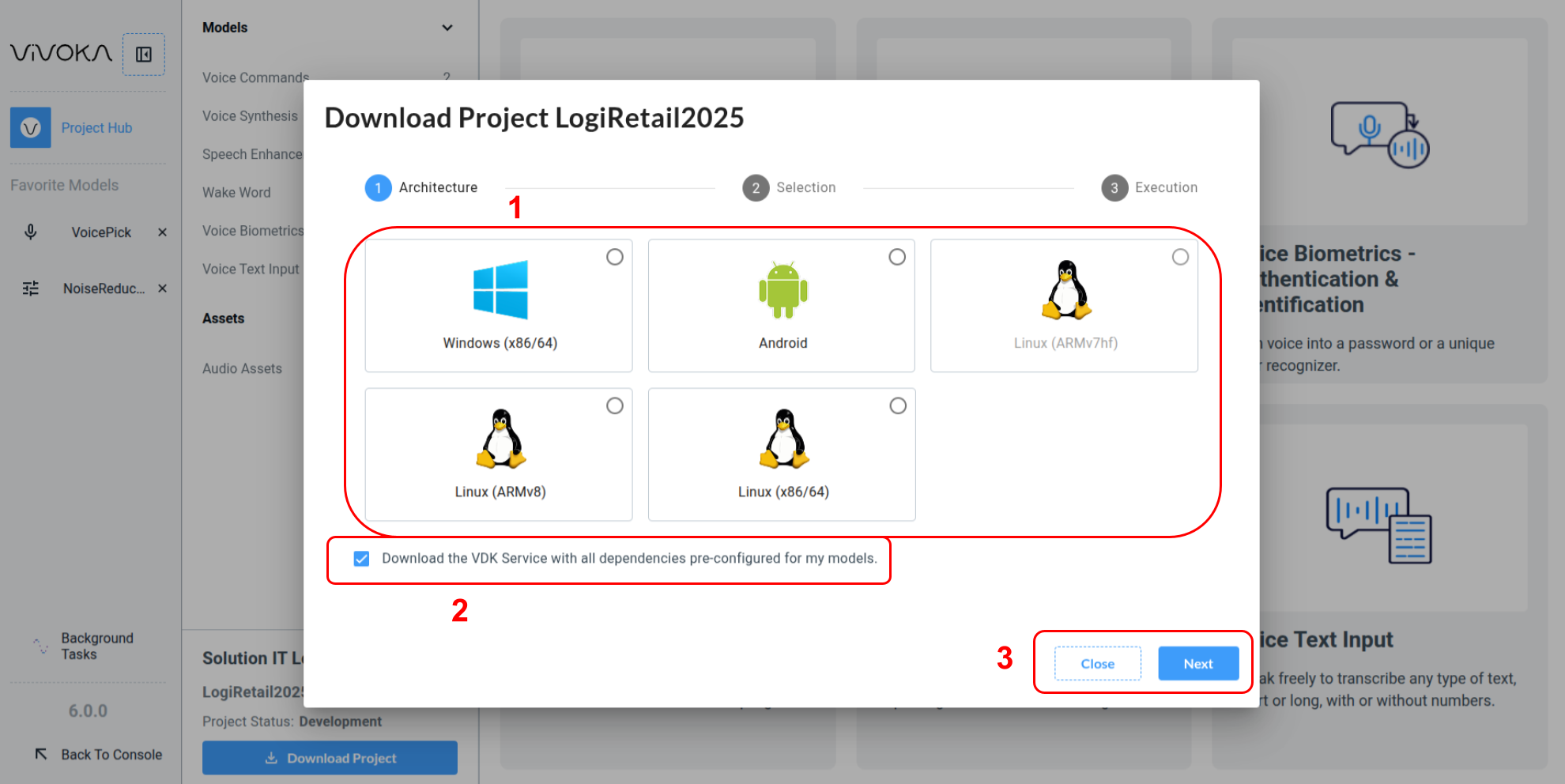
Starting the download project wizard begins by selecting a target operating system (1). To lighten the export process, uncheck the dedicated checkbox to remove VDK-Service (2) if you don’t plan to use it. If you are not yet familiar with the VDK-Service product, please take a moment to consult our dedicated documentation to understand its capabilities and usage.
Step 2
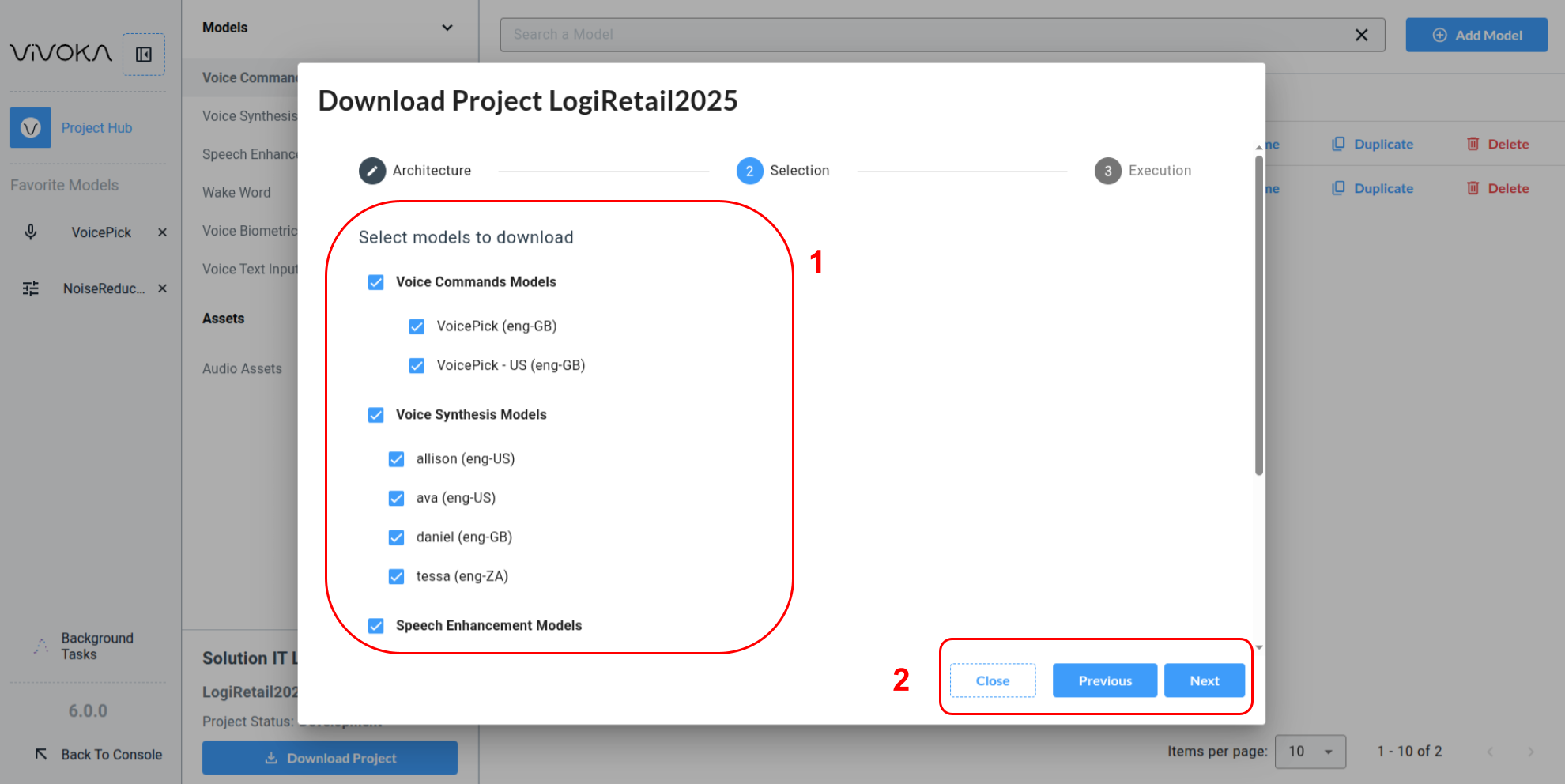
Models selection step
You are invited to select all or a subset (1) of your project models, grouped by technology. Navigate through the wizard using the previous or next buttons (2) to move between steps.
Final Step
That’s it !
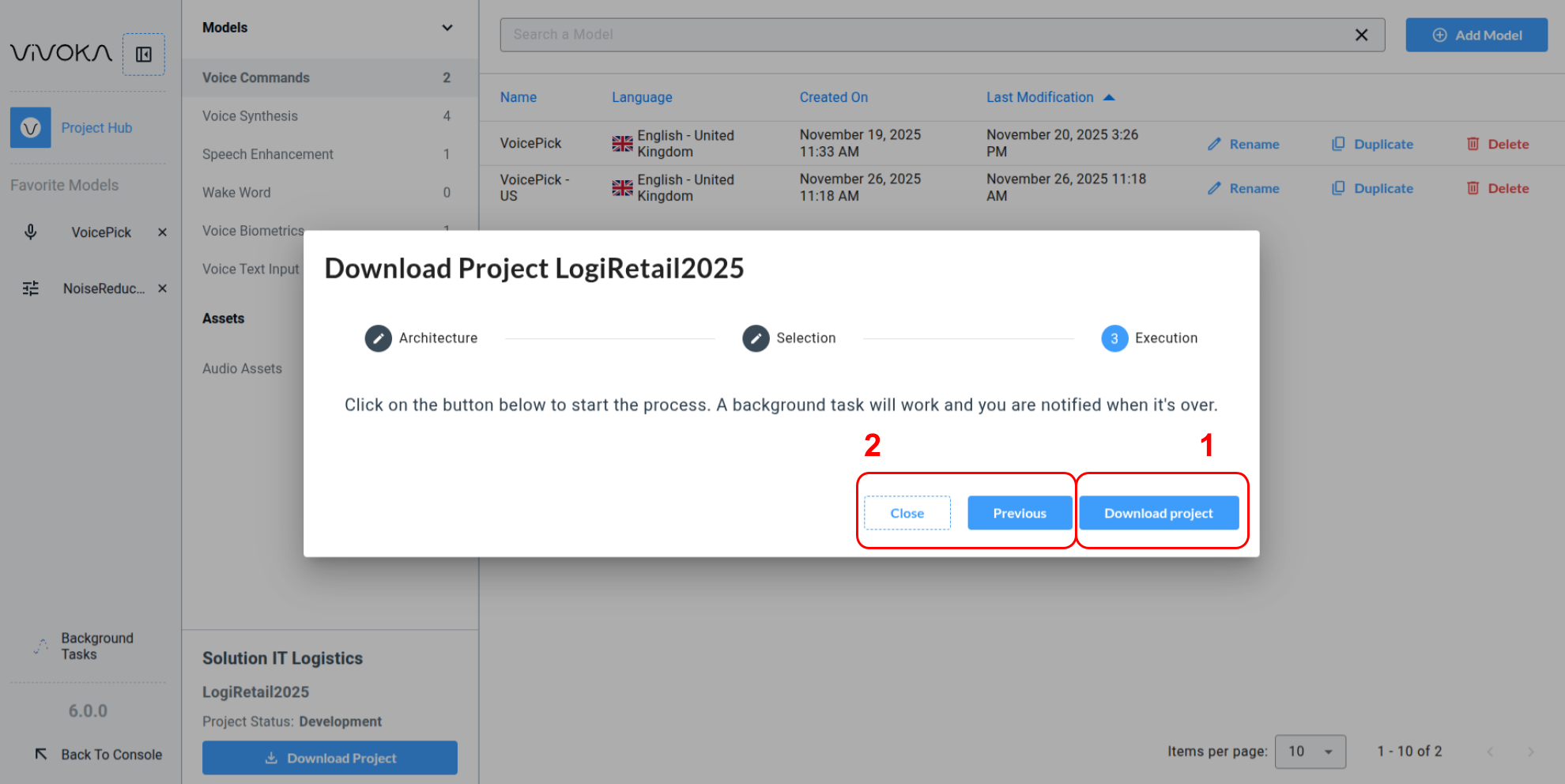
Clicking Download Project (1) starts a background task you can track with the Background Tasks Manager. Find dedicated documentation here .
Navigate back (2) to previous steps if you need to correct anything before exporting.