

Verification Process
To confirm that your migration has been completed successfully, we compare the export of each platform.
Step 1 – Export from VDK Studio Web
-
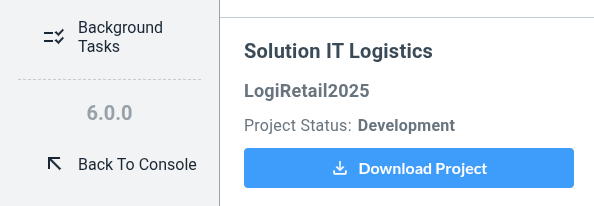
Click “Download Project” and follow the wizard to export your project.
-
Export your data from the VDK Studio Desktop version.
-
Compare files and folder structure to make sure they match, as well as versions if you’re using the same VDK version
The migration is based on the latest latest version of VDK Studio desktop. If you’re using earlier versions of it, you might be unable to match one of one the export.
VDK Studio Desktop export
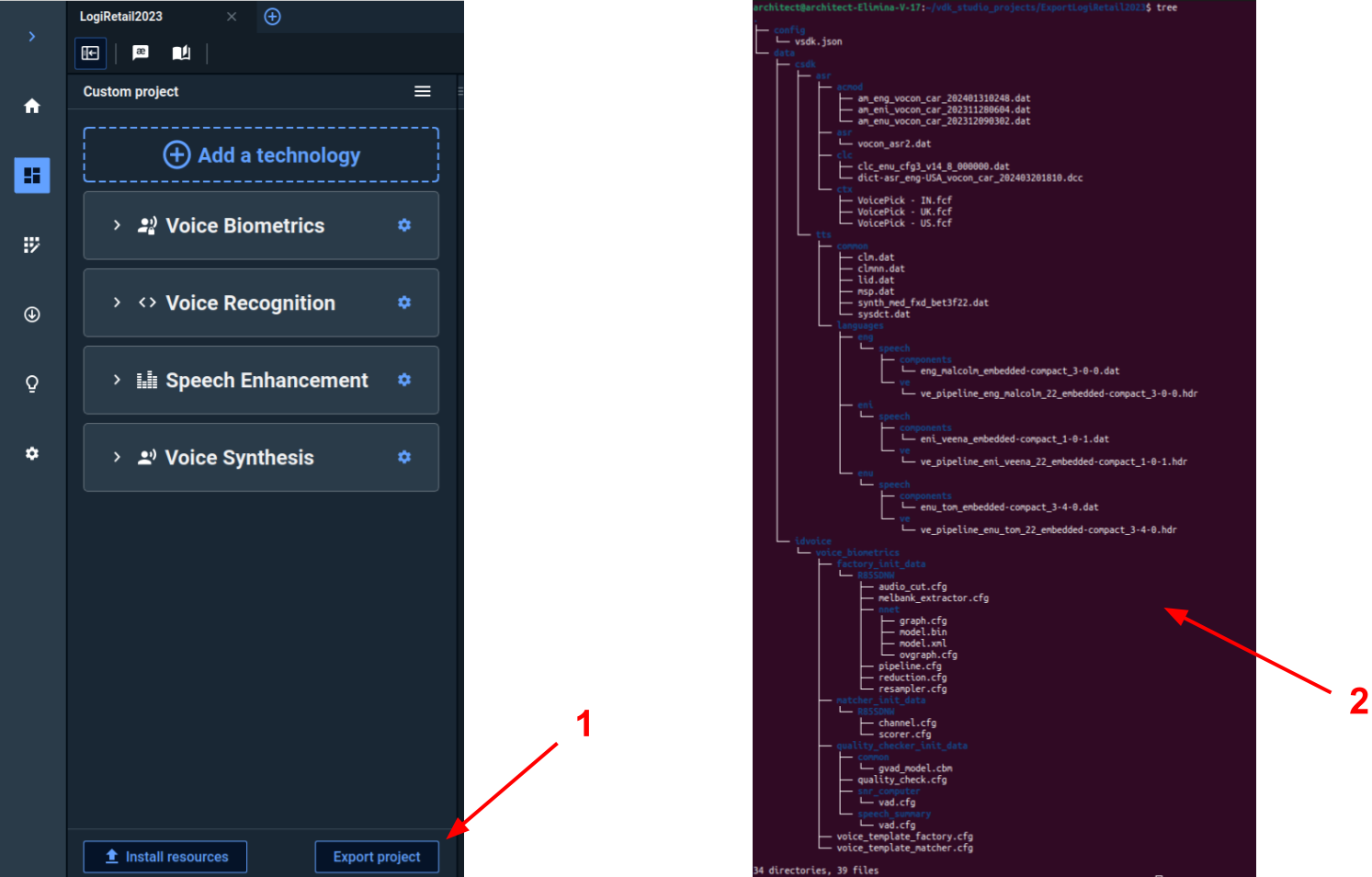
In the main menu of your VDK Studio desktop, export your project by clicking the “Export project” button (red arrow 1). Follow the wizard to complete the export.
VDK Studio Online export
In order to validate that the migration process is complete, first export your project by clicking on the “Download Project” button (red arrow 1). Follow the wizard to complete the download of your export.
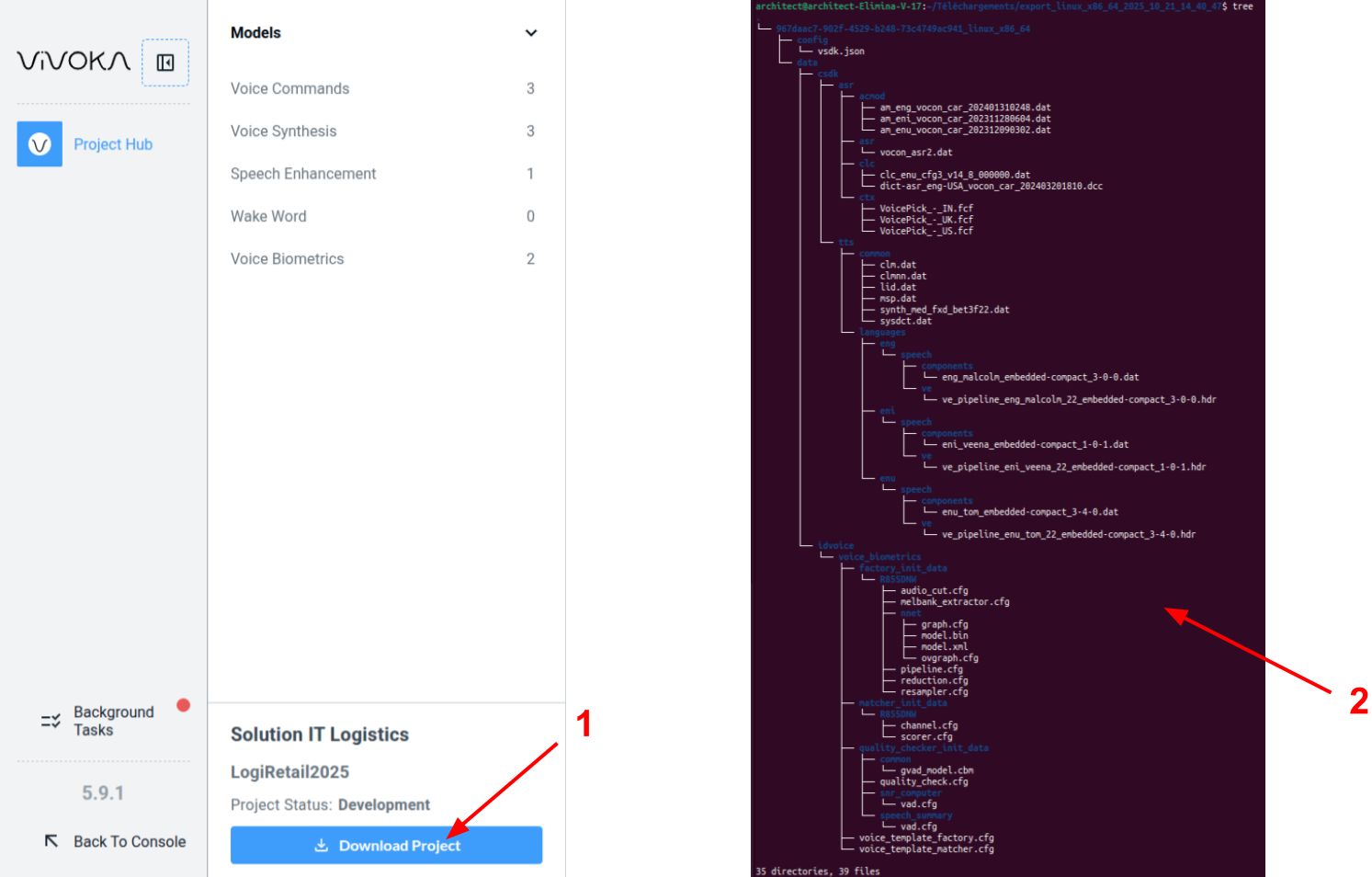
You can now compare carefully the result of the export from the VDK Studio online version of your project with the previous export.
Migration Wrap-Up
We hope this guide helped you complete your migration successfully, and we’re glad to welcome you to the new VDK Studio.